Logo Literature Matrix
🎁 30% OFF
🎁

Special 30% Discount Active!

Grab your Literature Matrix license at a massive discount.

Claim Offer →
All-in-One Literature & Citation Tool

Master Your References with Literature Matrix

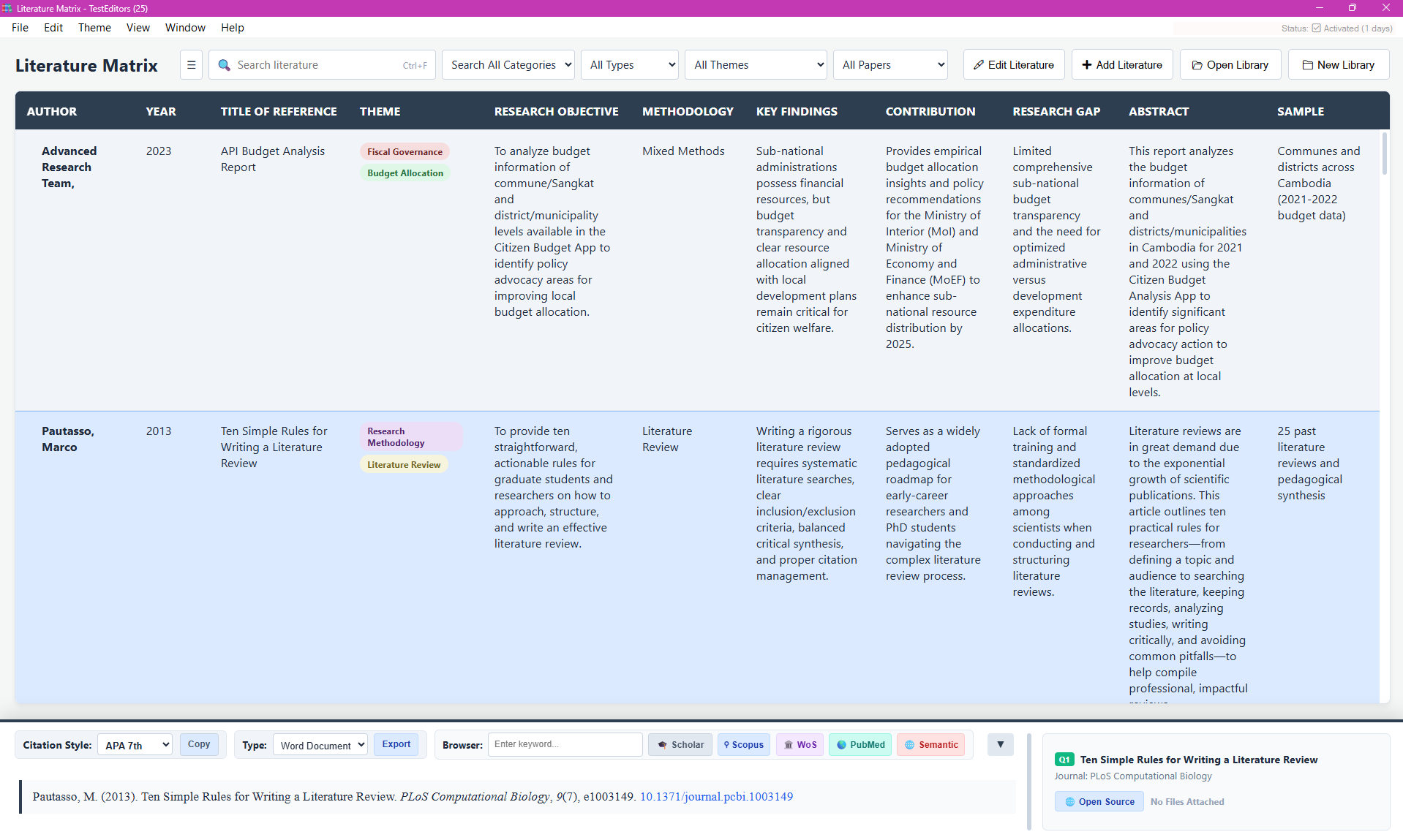
Organize over 40+ reference types, manage master database libraries, and seamlessly insert formatted citations into Microsoft Word with active hyperlinking and custom quick-search controls.
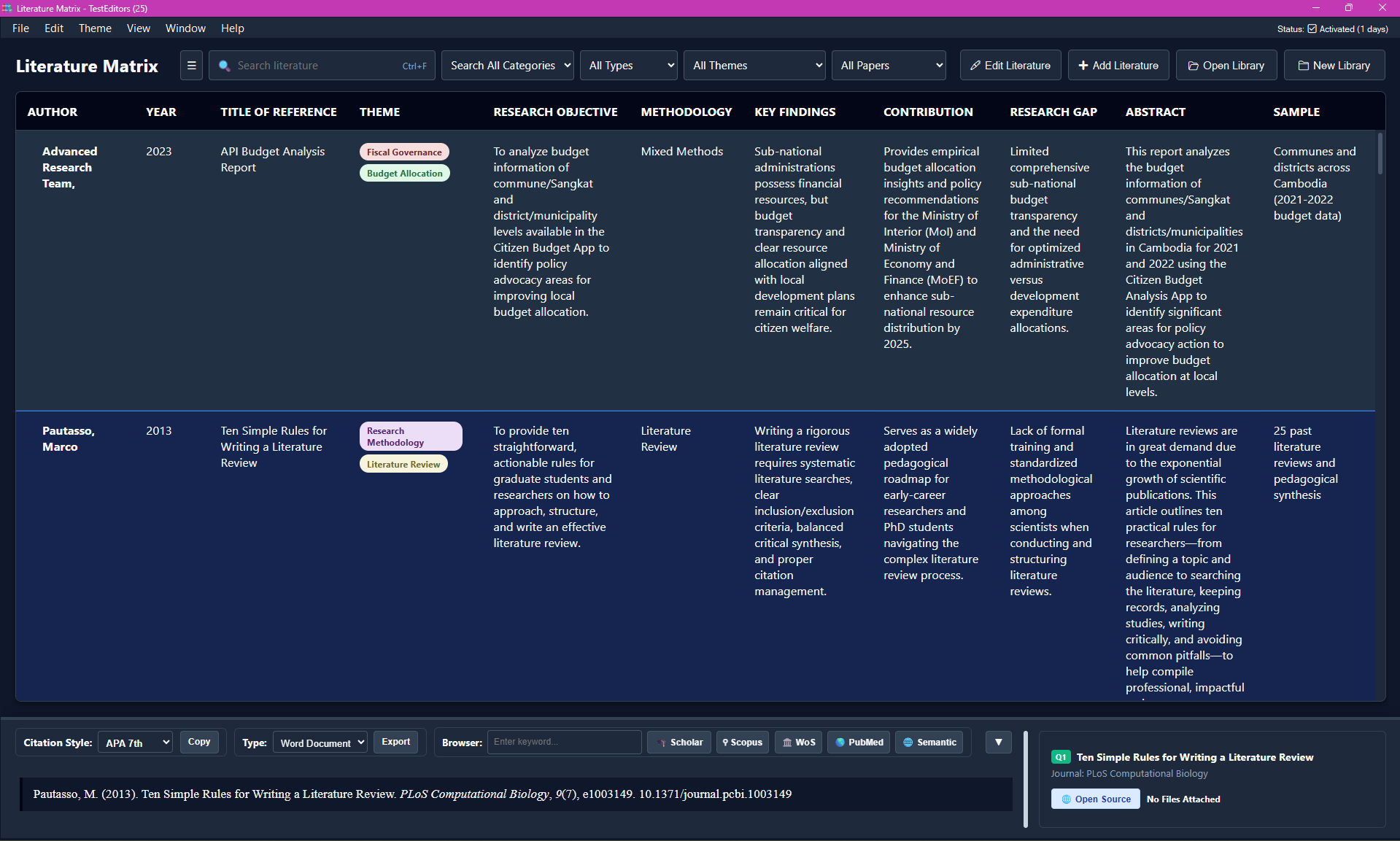
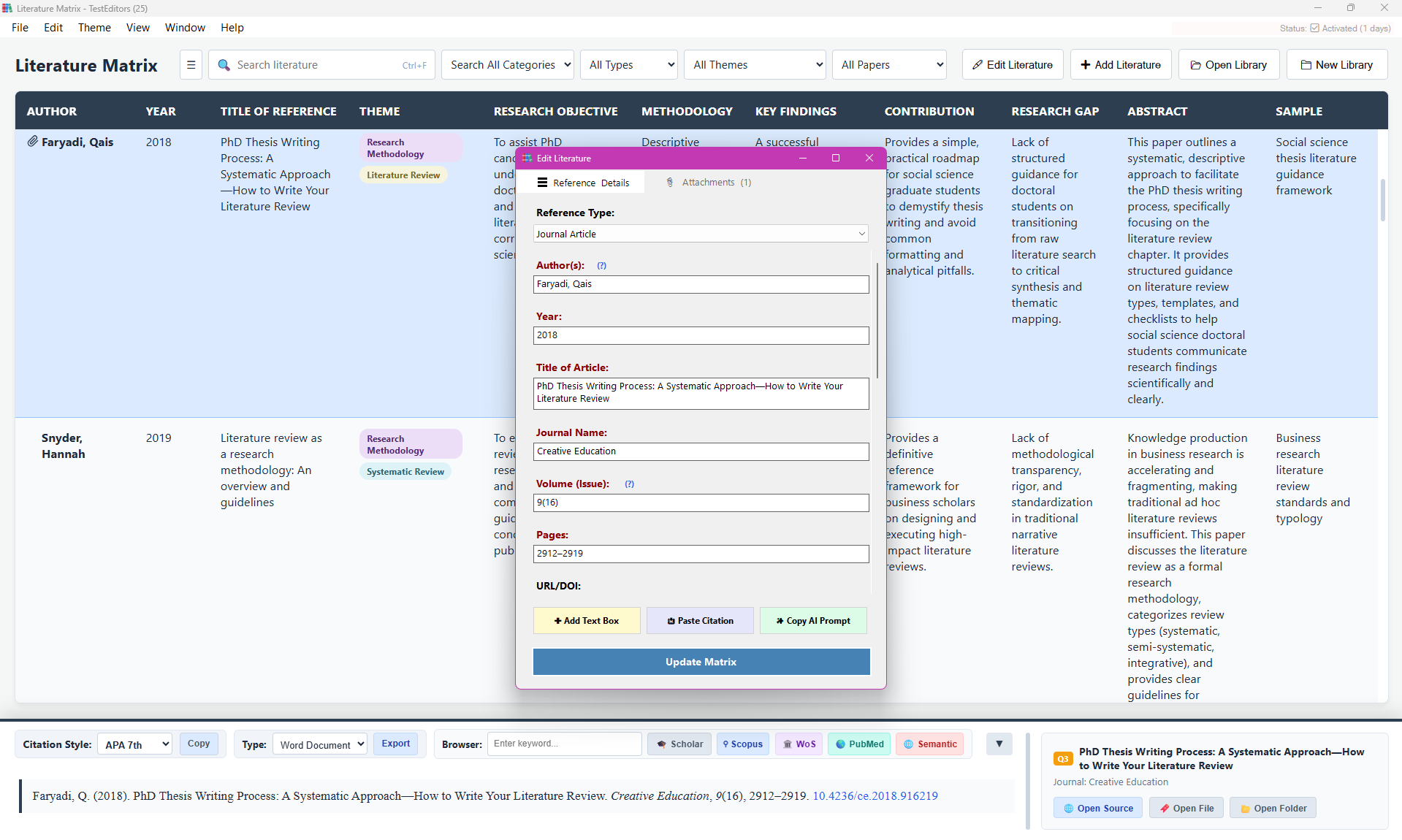
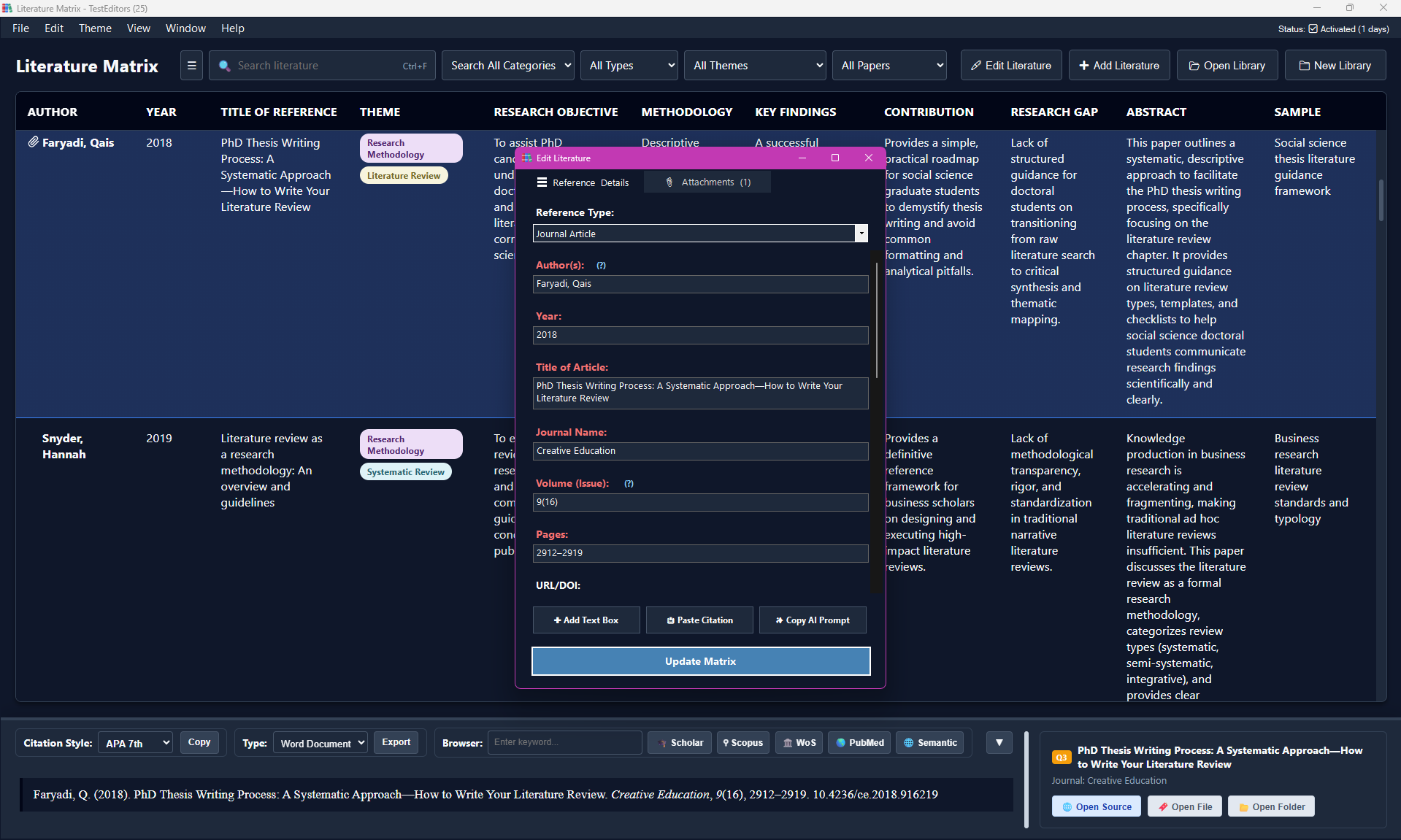
Literature Matrix Light Theme Literature Matrix Dark Theme
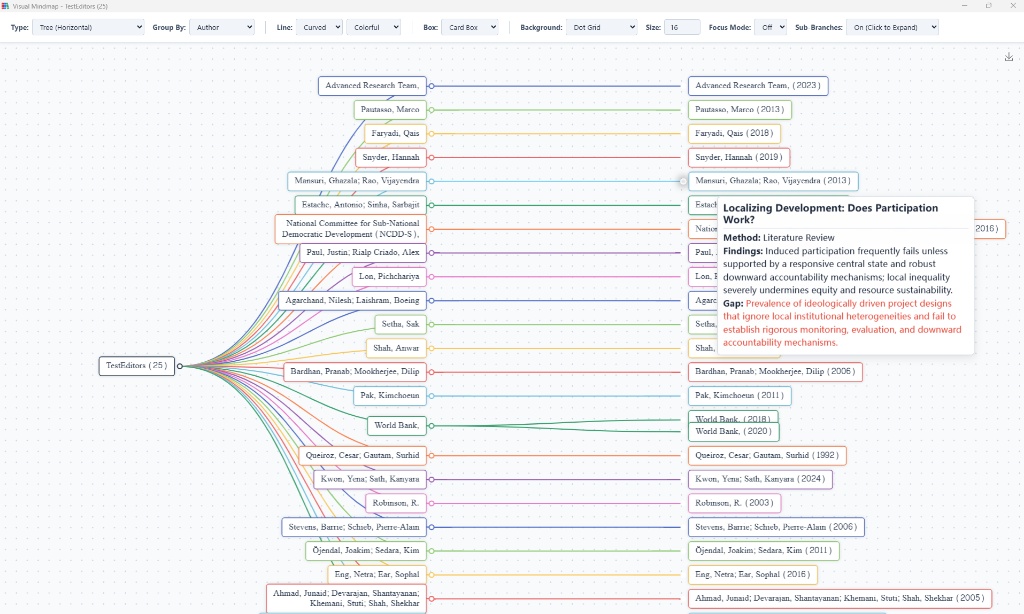
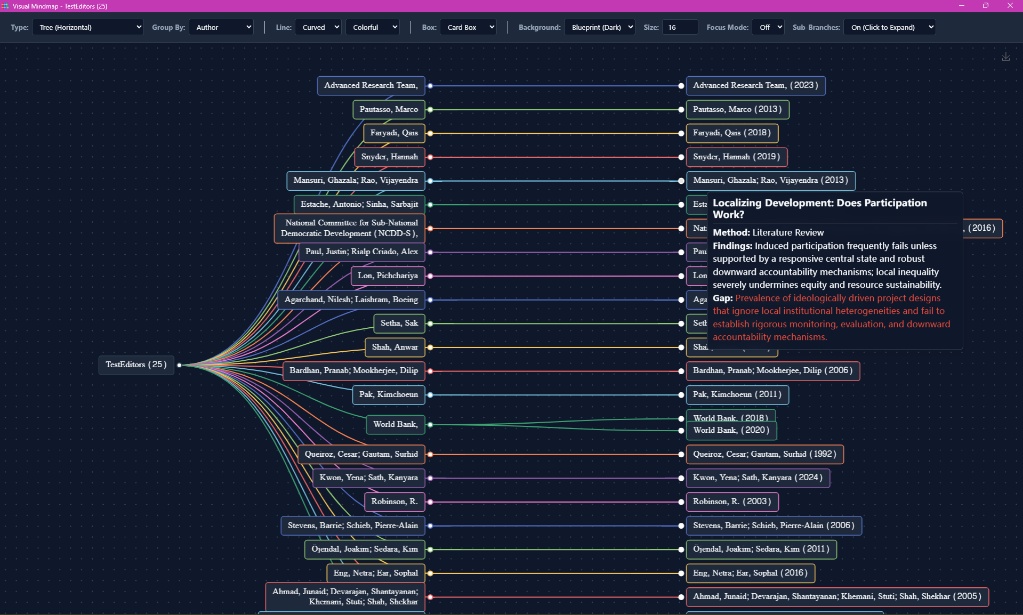
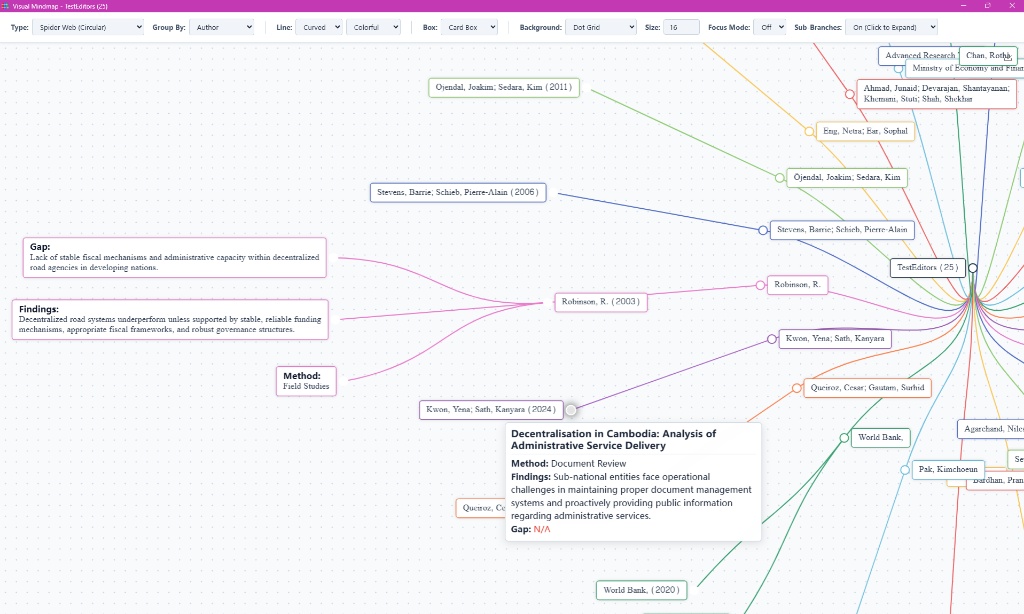
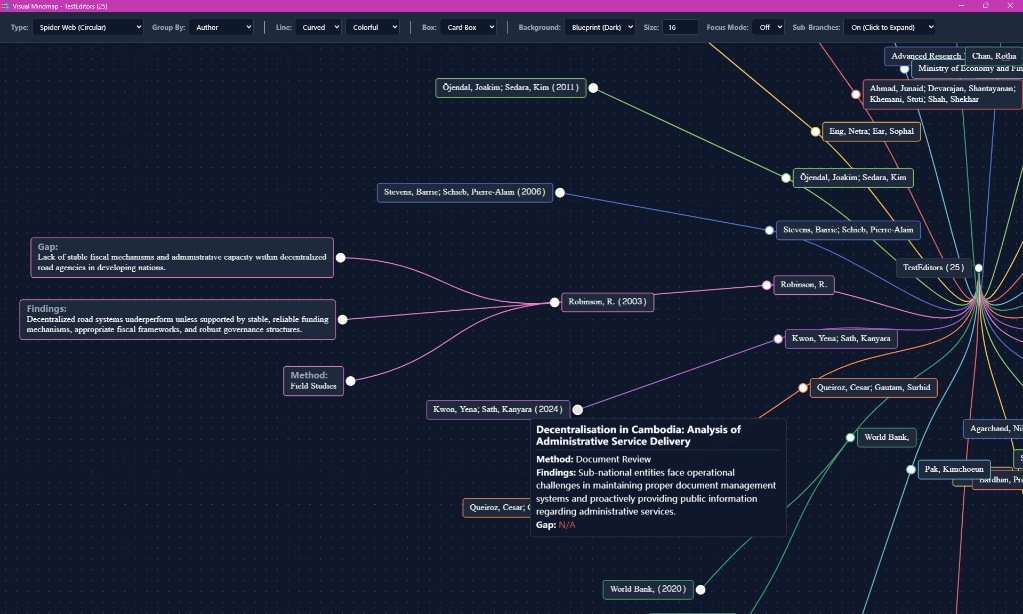
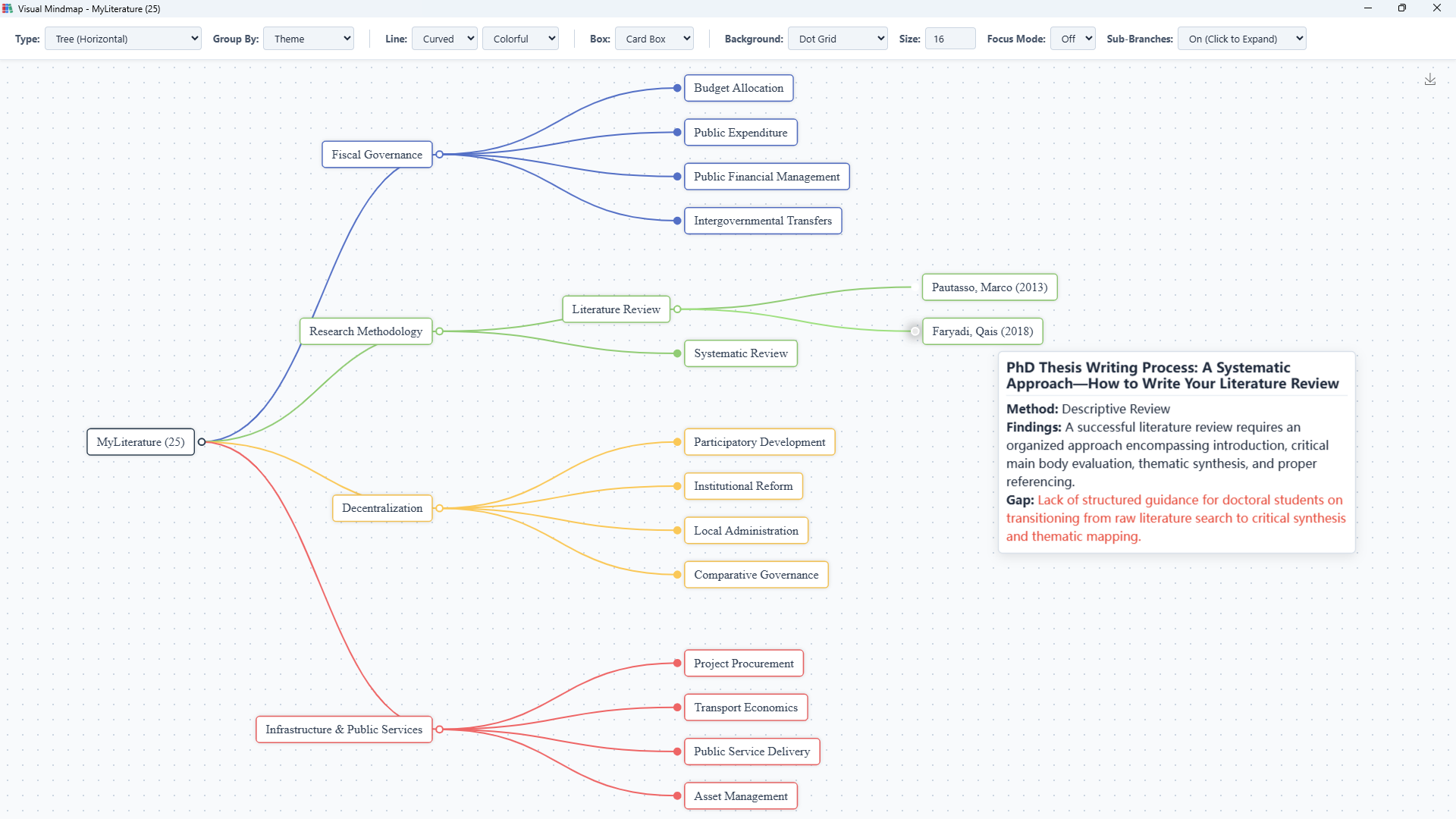
Mindmap Light Theme Mindmap Dark Theme
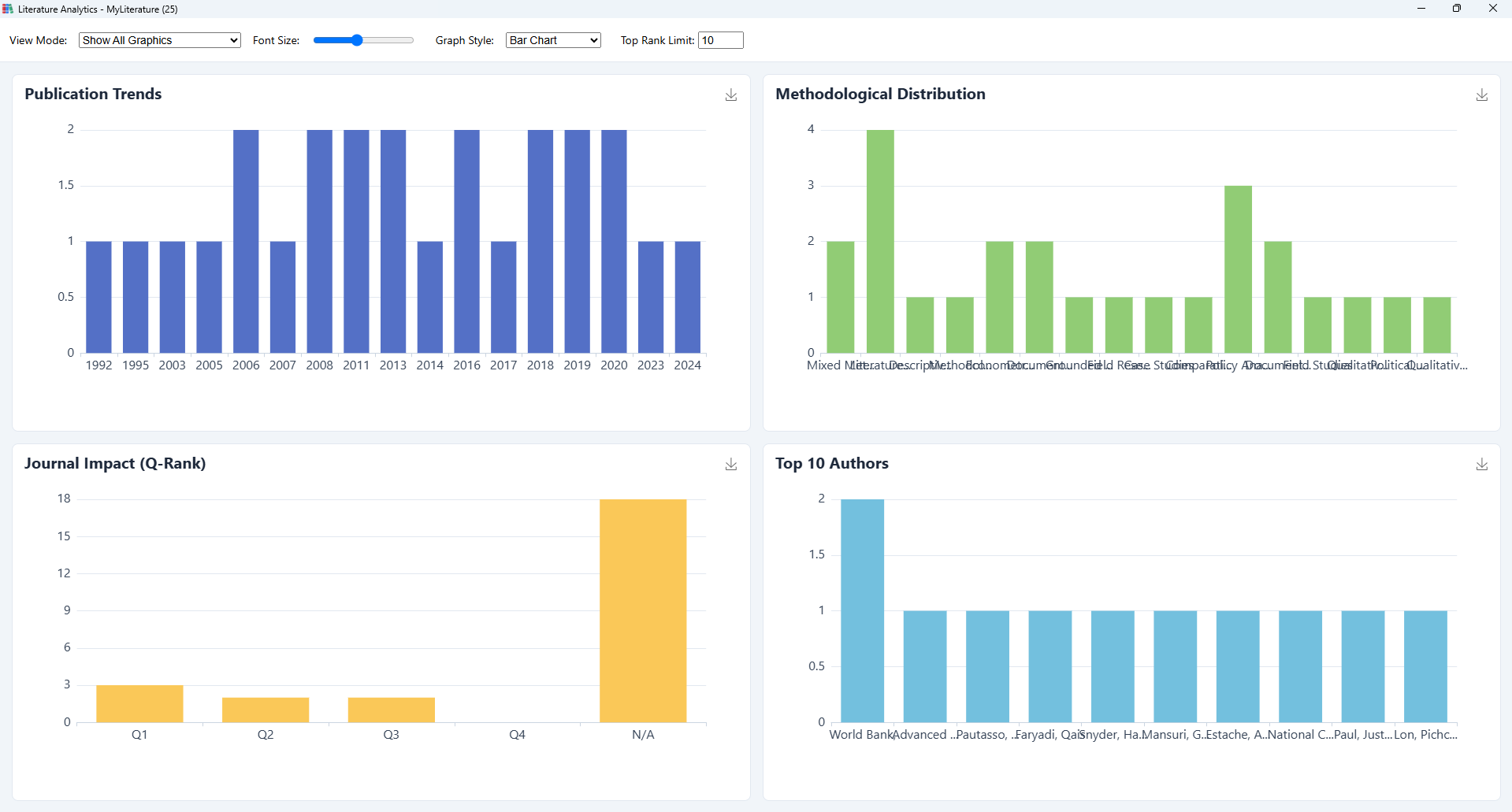
Analytics Light Theme Analytics Dark Theme
Edit Literature Light Theme Edit Literature Dark Theme
Internal Browser Light Theme Internal Browser Dark Theme
Internal Browser Light Theme 12 Internal Browser Dark Theme 12
Internal Browser Light Theme 13 Internal Browser Dark Theme 13
Internal Browser Light Theme 14 Internal Browser Dark Theme 14
🌙 Click to view Dark Theme
Seamless Integration

Overview: Literature Matrix

A powerful central database and built-in browser engine to collect, analyze, and visualize research papers effortlessly.

1. 40+ Reference Types & Master Imports

Support for over 40 distinct publication types. Import existing references via RIS, BibTeX (.bib) or EndNote (.enw).

Advanced Options: Users can add custom fields and toggle advanced tracking (Methodology, Findings, Gaps, Contributions) even for non-research types like Books or Book Chapters.

Supported Types

Journal Article Conference Paper Thesis PreprintBook Book Section Encyclopedia ArticleWeb Page Blog Post Forum Post Social Media Podcast E-mail Instant MessageBill Case Statute Hearing Patent Government Document Standard Legal Rule or RegulationArtwork Audio Recording Film or Broadcast Television Episode Video Recording Presentation InterviewComputer Program DatasetReport Generic Dictionary Entry Document Grant Letter Magazine Article Manuscript Map Newspaper Article

2. Live Citation & Metadata Panel

View your metadata instantly and generate publication-ready citations on the fly. Select from standard academic formats directly in the interface.

  • • Standard Styles: Support for APA, MLA, Chicago, Harvard, and Vancouver.
  • • Instant Preview: See your formatted citation immediately before exporting or inserting into Word.

Smith, J. (2024)

Journal of Future Tech • Vol 12, Issue 4

Generated Citation

Smith, J. (2024). Literature review on AI. Journal of Future Tech, 12(4), 45-60.
https://doi.org/10.1234/jft.2024.045

3. Advanced Filtering & Multi-Format Export

  • • Filter by: Custom Theme, Type of Reference, or use the global searching box.
  • • Visual Searching: Toggle Keyword Highlight matching in search results.
  • • Customize View: Selectively show or hide specific matrix columns.

Export references seamlessly to DOCX, RIS, BibTeX, or ENW formats.

🔍
AUTHOR ↕
YEAR ↕
TITLE ↕
Smith, J.
2024
Literature Review on AI
Doe, A.
2023
Machine Learning Trends
Jhon, R.
2025
Foundations of AI Governance
Willian, H.
2025
Governance in Healthcare Networks
Kimaun, C.
2026
Literature Matrix: Shaping Healthcare

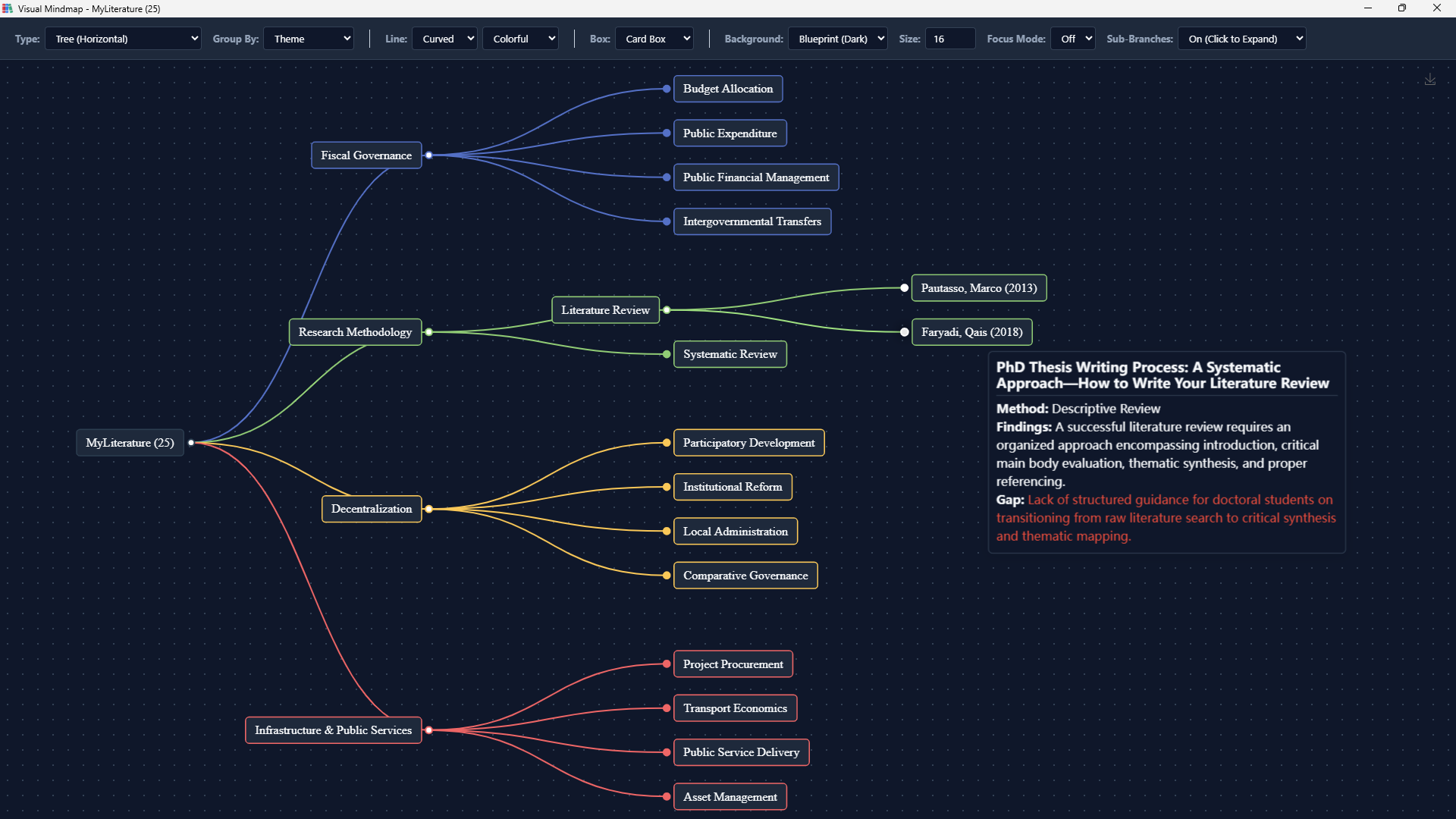
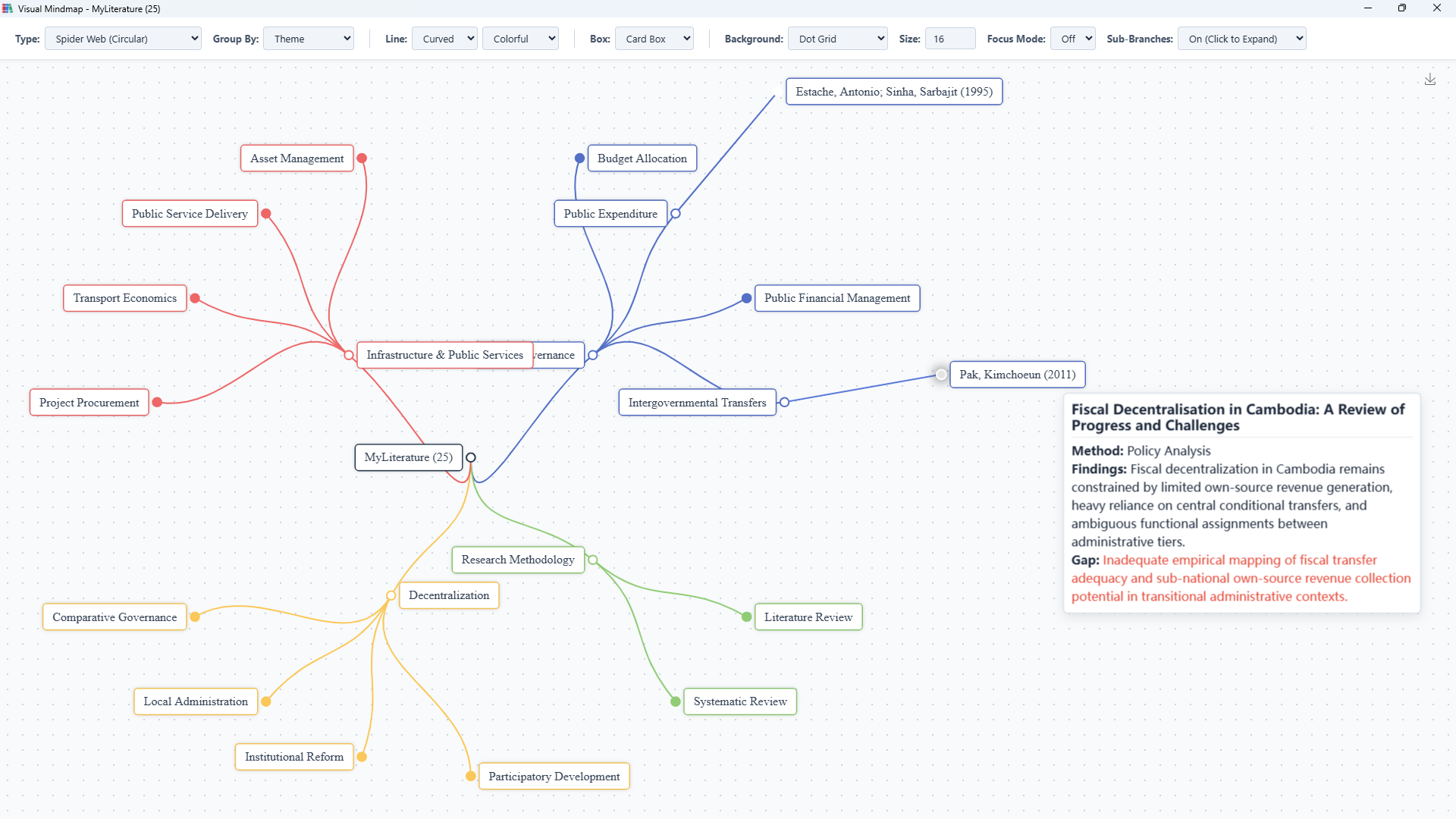
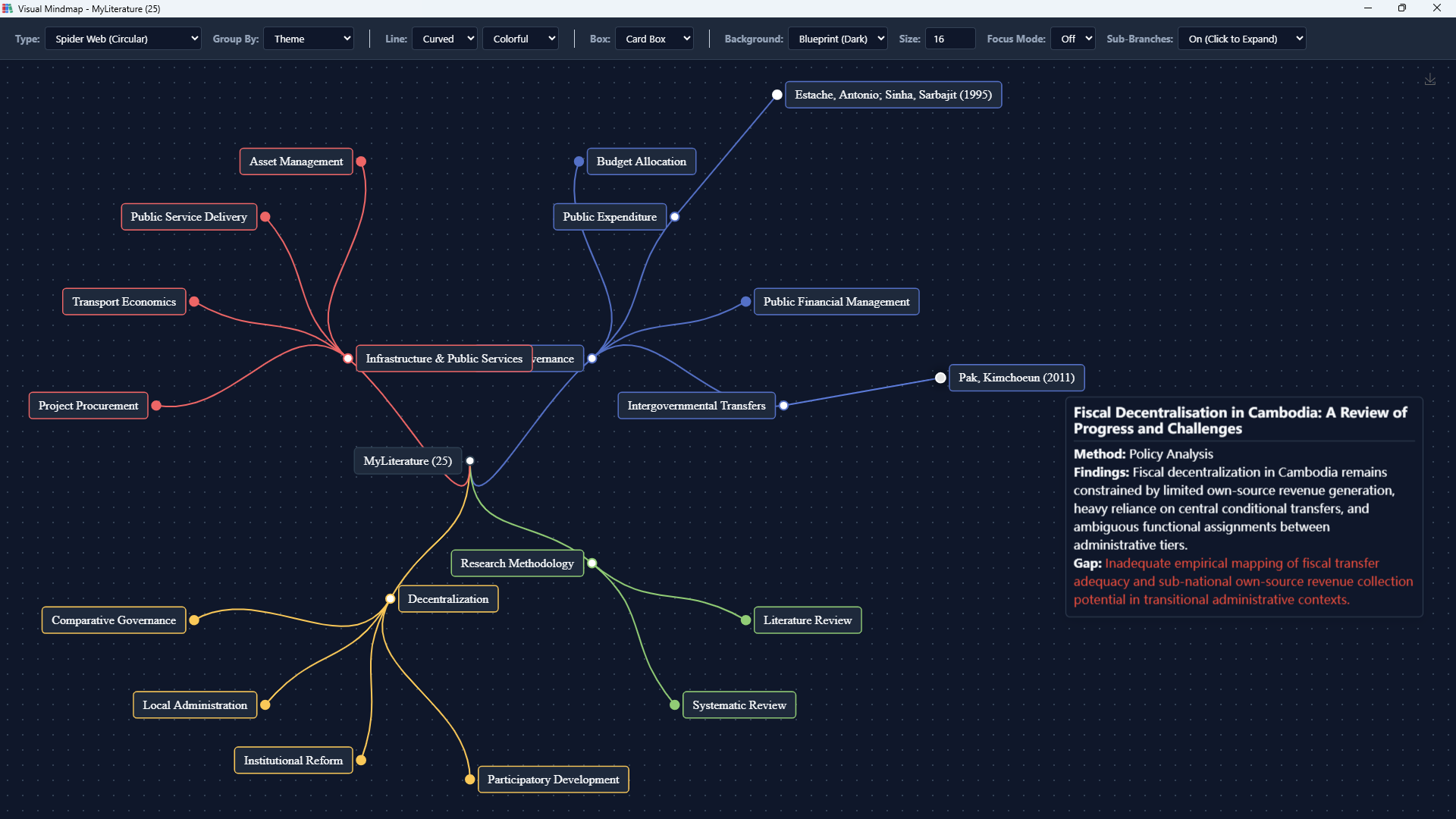
4. Interactive Mindmap

Visualize literature connections instantly with 5 dynamic chart layouts: Hierarchical map, Tree (horizontal/vertical), Spider Web, and SunBurst.

  • • Sort Nodes by: Theme, Author, Year, or Methodology.
  • • Fully Customizable: Adjust font sizes, box styles, and connector lines to create publication-ready diagrams.

Hover over the nodes in the preview to explore mock data.

Layout:

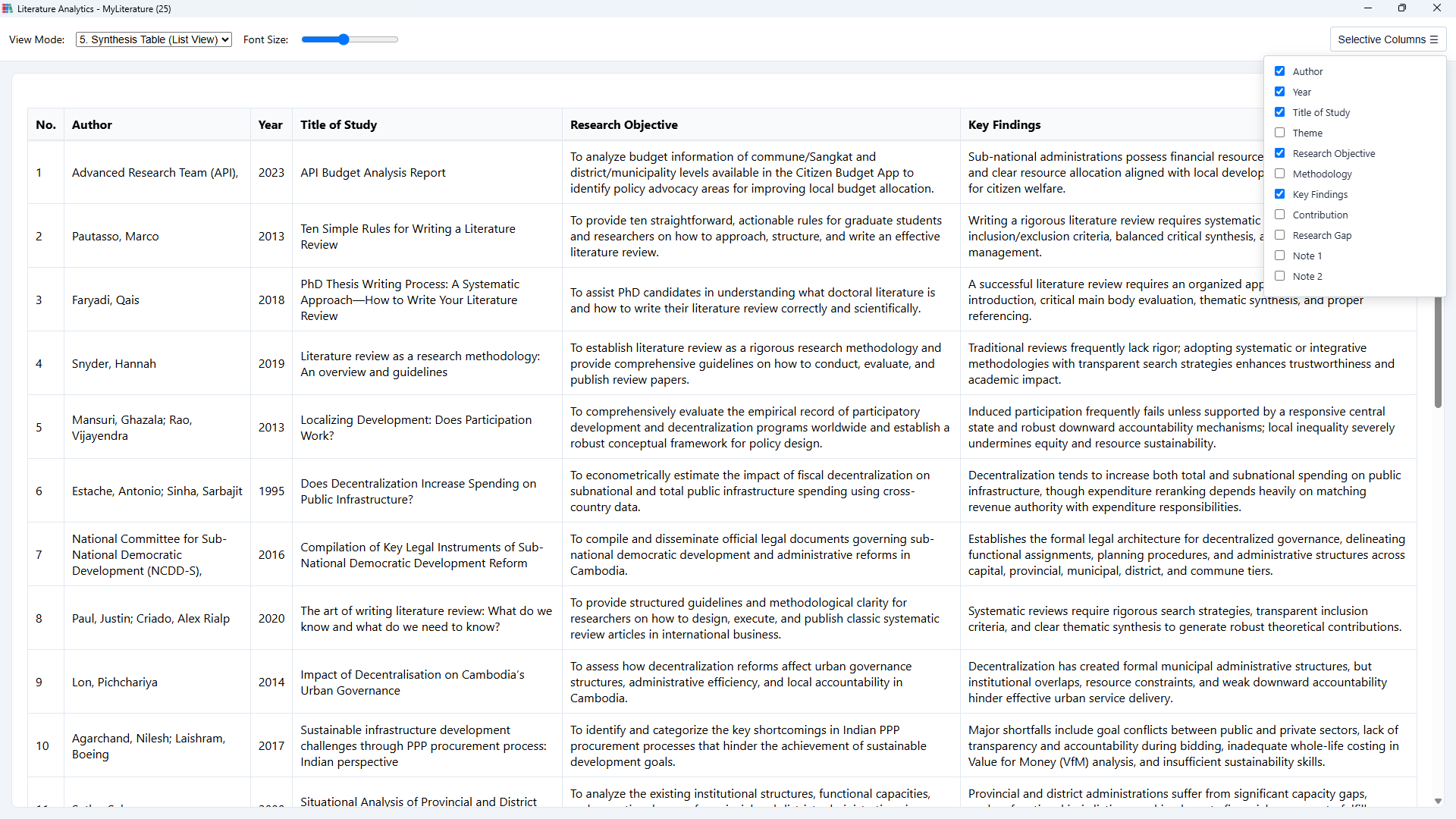
5. Data Analytics

Uncover patterns in your literature database with distinct analytical views:

  • • Publication Trends
  • • Methodological Distribution
  • • Top Authors
  • • Journal Impact (Q-Rank)
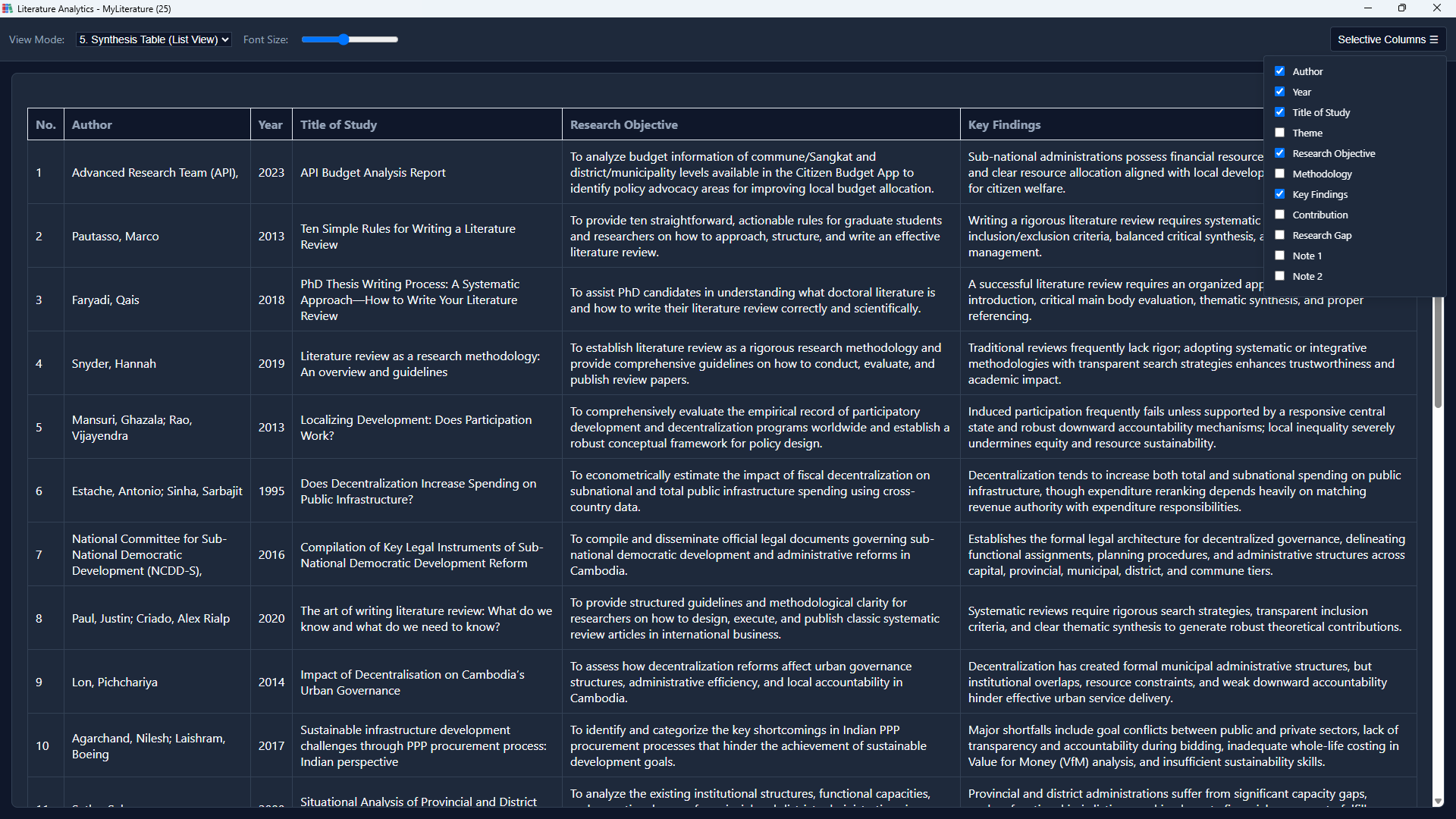
  • • Synthesis Table (List View)

Toggle between Bar, Line, Pie, Doughnut, and Scatter plots. Use numeric controls to dynamically expand or narrow your top author datasets.

View Mode:
No.AuthorYearTitle of Study
1Smith, J.2024Literature Review on AI
2Doe, A.2023Machine Learning Trends
3Jhon, R.2025Foundations of AI Governance
4Willian, H.2025Governance in Healthcare
5Kimaun, C.2026Literature Matrix Future

6. Internal Research Browser

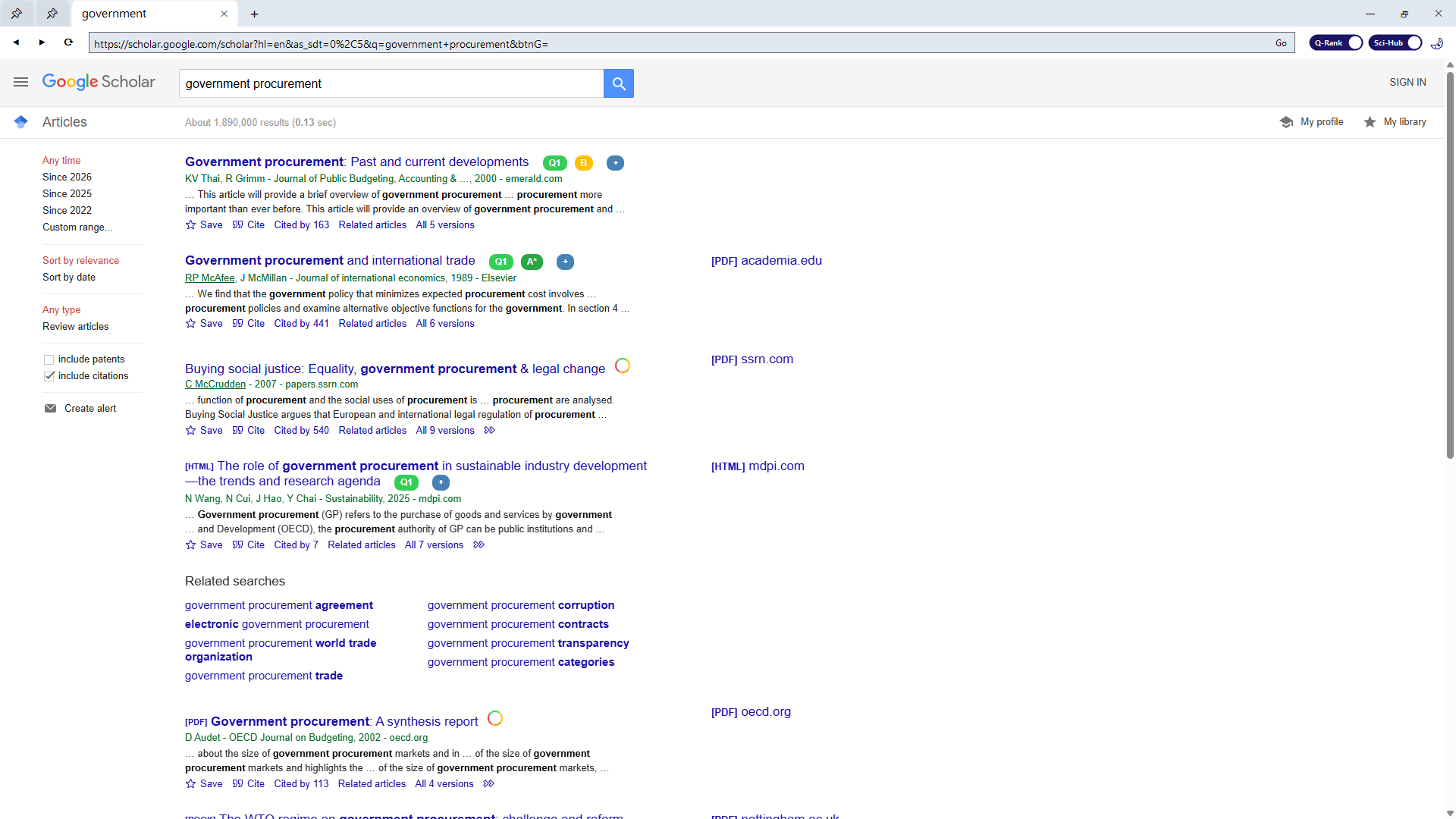
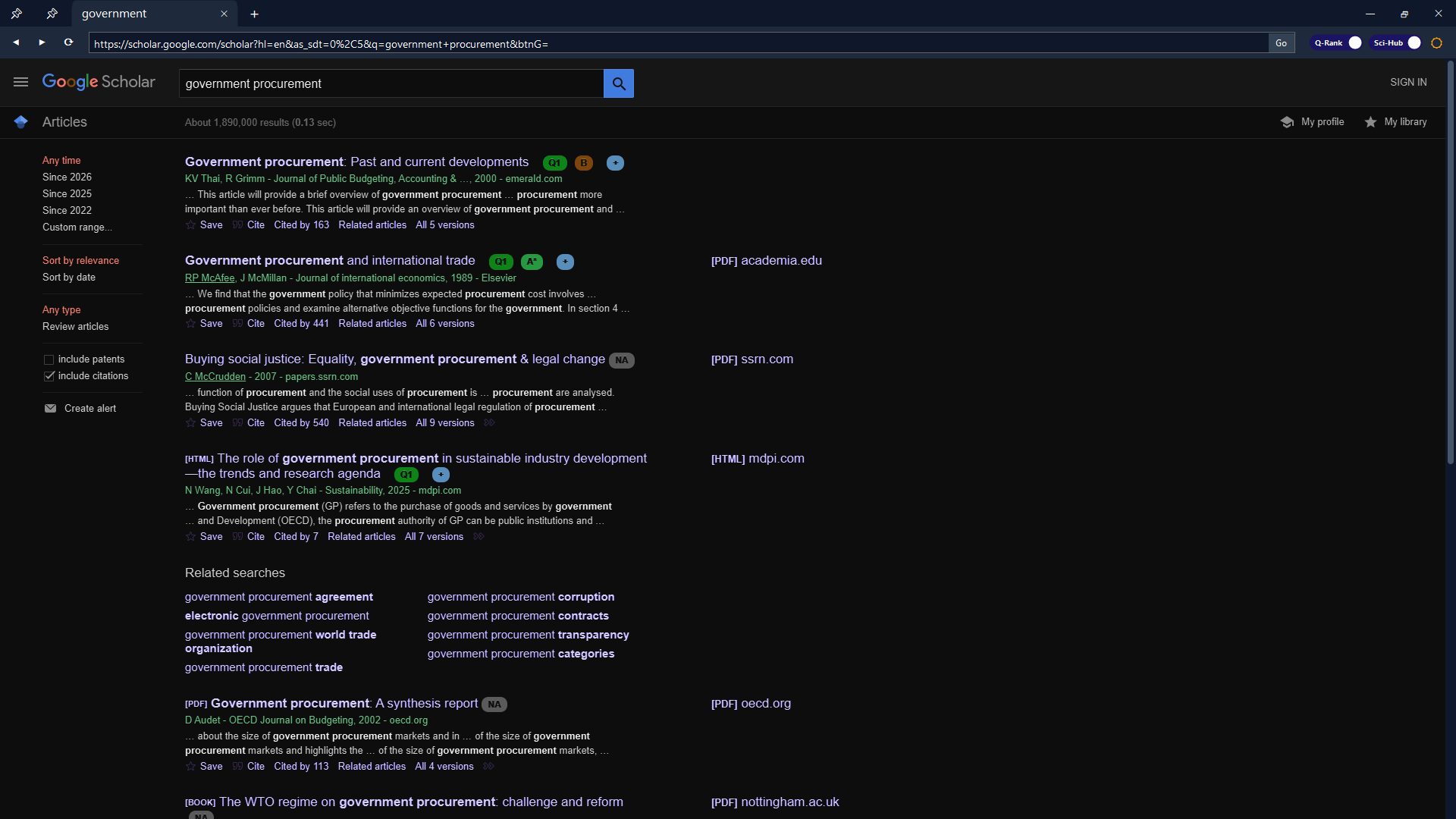
Browse online literature directly inside Literature Matrix without leaving the environment. Allows rapid metadata extraction straight into your database.

  • • Sci-Hub Integration: Built-in support for resolving DOIs on any website and Google Scholar.
  • • Q-Rank: Flexibly toggle these overlay features ON or OFF globally.

Turn ON or OFF on the two toggles to preview the features.

scholar.google.com
Q1 🔓 Open via Sci-Hub
Q2 🔓 Open via Sci-Hub
Q3 🔓 Open via Sci-Hub
Q4 🔓 Open via Sci-Hub

7. App Appearance & Themes

Work comfortably in any lighting condition. Choose between a crisp Light mode, a sleek Dark mode to reduce eye strain during late-night research sessions, or set it to match your System default automatically.

🤖

8. AI Prompt Generator

Bridge the gap between your library and AI assistants. Automatically generate highly optimized instructions for LLMs based on single or batch papers in your database.

  • • Request formatted RIS or BibTeX data extraction.
  • • Generate instructions for deep Paper Summarization.
  • • Process Single Papers or massive Batch Extracts.

Just copy the generated prompt to your clipboard and paste it directly into tools like Google NotebookLM, Jenni AI, or Claude alongside your uploaded PDFs.

"Act as an expert academic research assistant..."

Keyboard Reference

Main Application Shortcuts

Work faster with these global hotkeys in the Literature Matrix UI.

Create New Library Ctrl + N
Add Literature Ctrl + L
Open Library Ctrl + O
Edit Literature Ctrl + E
Open Library in Window Explorer Ctrl + P
Cite Literature Alt + C
Copy Citation (multi-select) Ctrl + C
Import References Ctrl + I
Export References (multi-select) Ctrl + S
Save As Ctrl + Shift + S
Export Entire Matrix to Excel Ctrl + X
Backup as Zip Ctrl + B
Delete Row (multi-select) Del
Exit Ctrl + W
Open Visualizers
Ctrl + M (Mindmap) Ctrl + T (Analytics)
Seamless Integration

Literature Matrix: Word Add-in Guide

Everything you need to write, cite, and format directly within Microsoft Word.

1. Getting Started

  • • Open Literature Matrix: Launches main application to manage master database.
  • • Help: Opens this user guide.

2. Library Setting Group

  • • Current Library: Dropdown to switch active database files.
  • • Open/Switch Library: Manually browse & select database files.
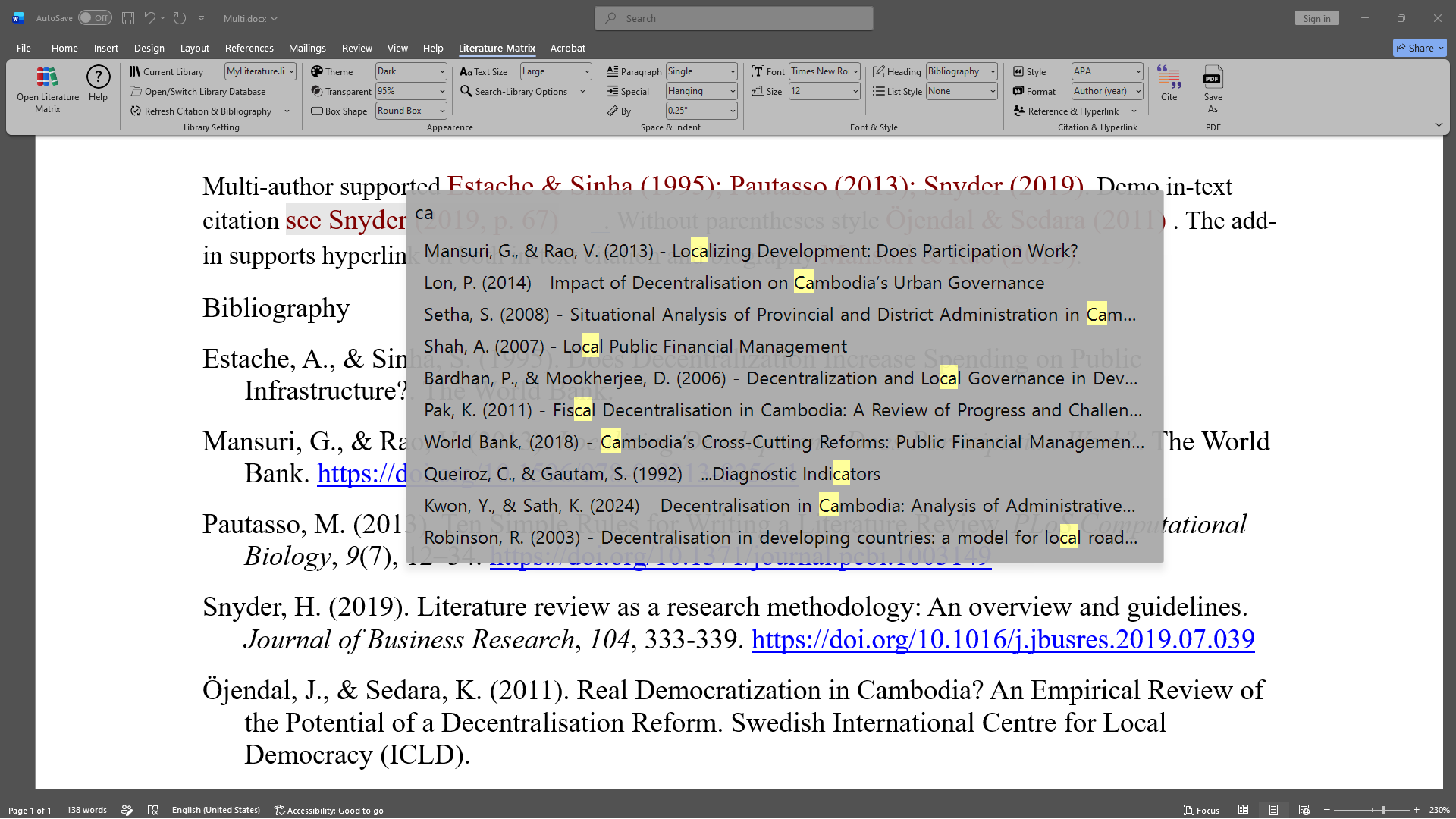
  • • Refresh Citation & Bibliography: Immediate sync + Auto Refresh toggle.

3. Appearance

  • • Themes: Light, Dark, Blue, Emerald, Sunset.
  • • Transparent Overlay: 50%, 75%, 95%, 100%.
  • • Box Shape: Round Box or Card Box.
  • • Text Size: Auto, Small, Medium, Large.
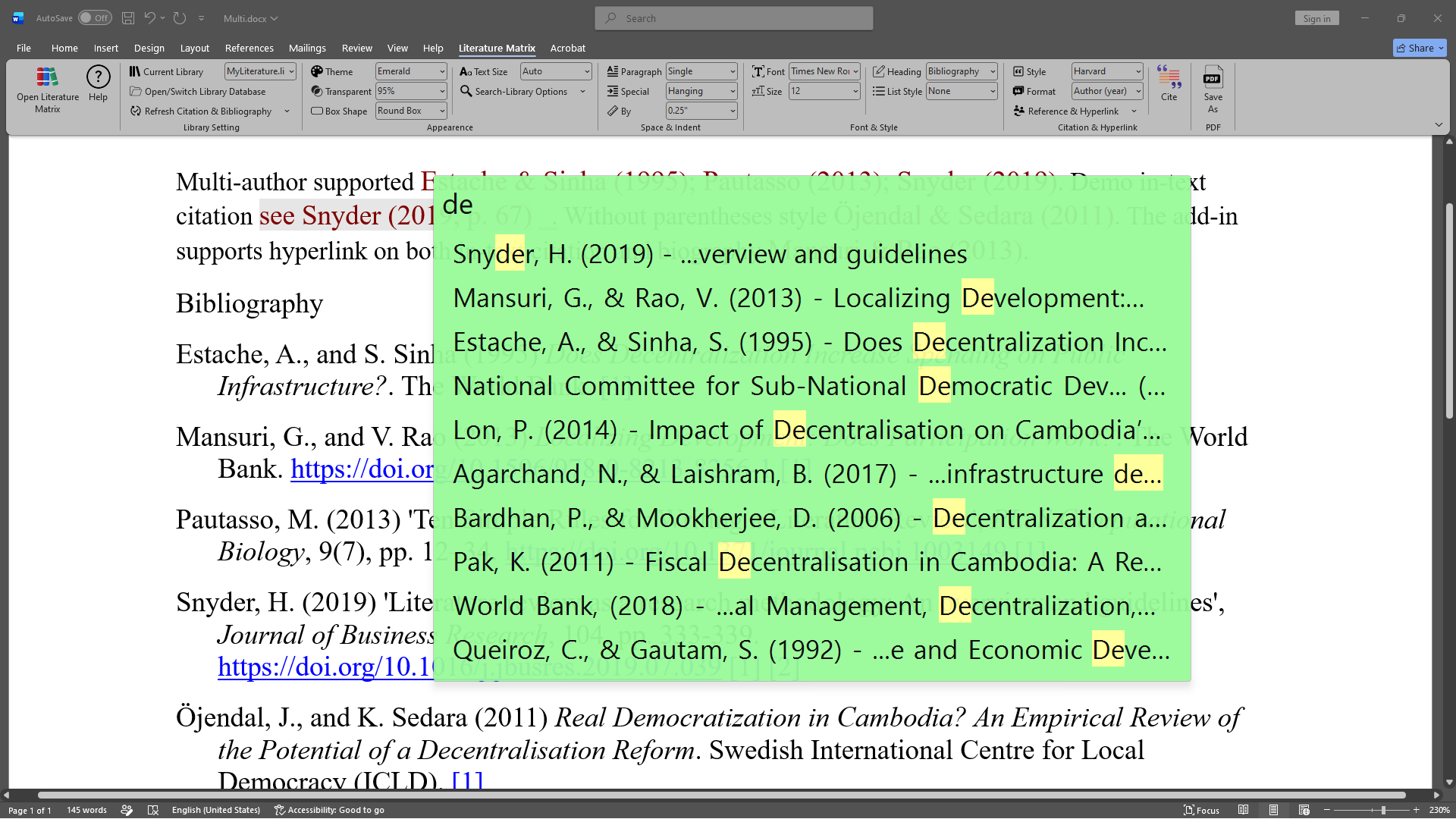
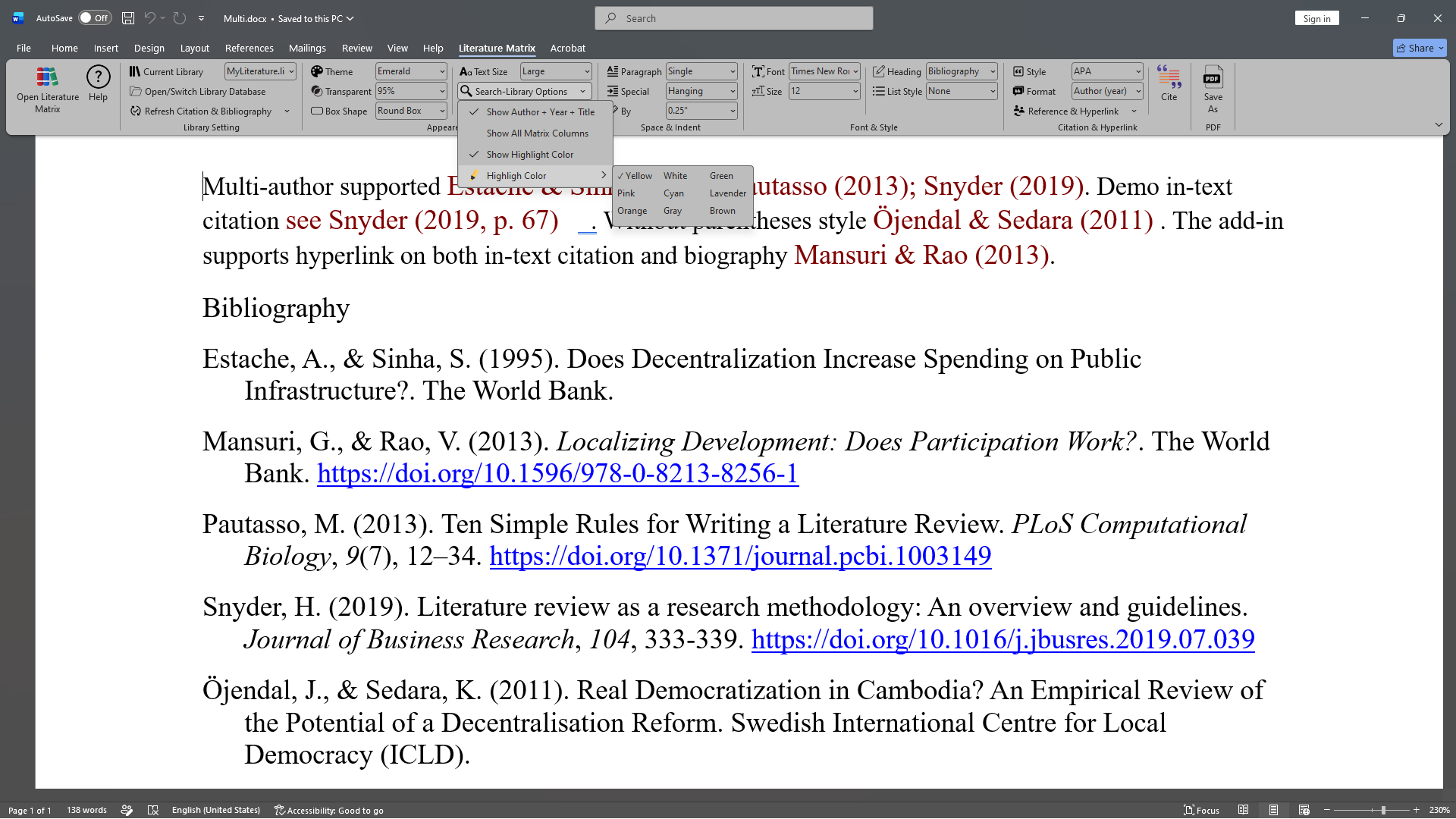
  • • Search-Library Options: Author+Year+Title, All Columns.
  • • Highlight-Text Options: Custom Match Highlight Colors.

4. Space & Indent

  • • Paragraph: Single, 1.5, Double, At least, Exactly, Multiple.
  • • Spacing After:Adjust spacing after each line/bullet (0 pt – 24 pt) or type a custom value.
  • • Special Indents: None, First line, or Hanging indents.
  • • By Measurement: Custom inches (e.g., 0.25" to 1.5").

5. Font & Style

  • • Font & Size: Custom font face and point sizes for bibliography.
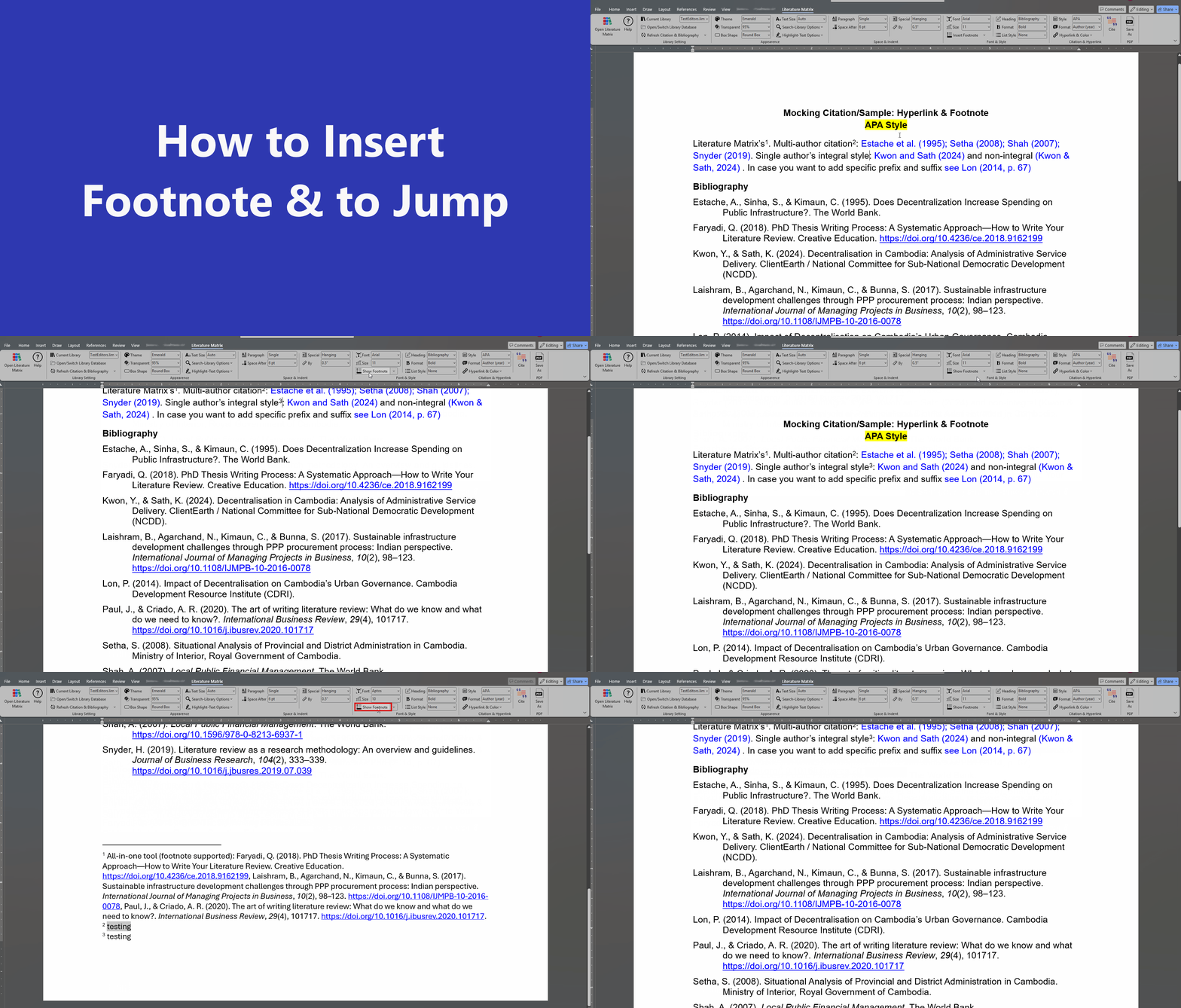
  • • Insert/Show Footnote Insert a new footnote, jump to main text and navigate "Previous" and "Next" footnote
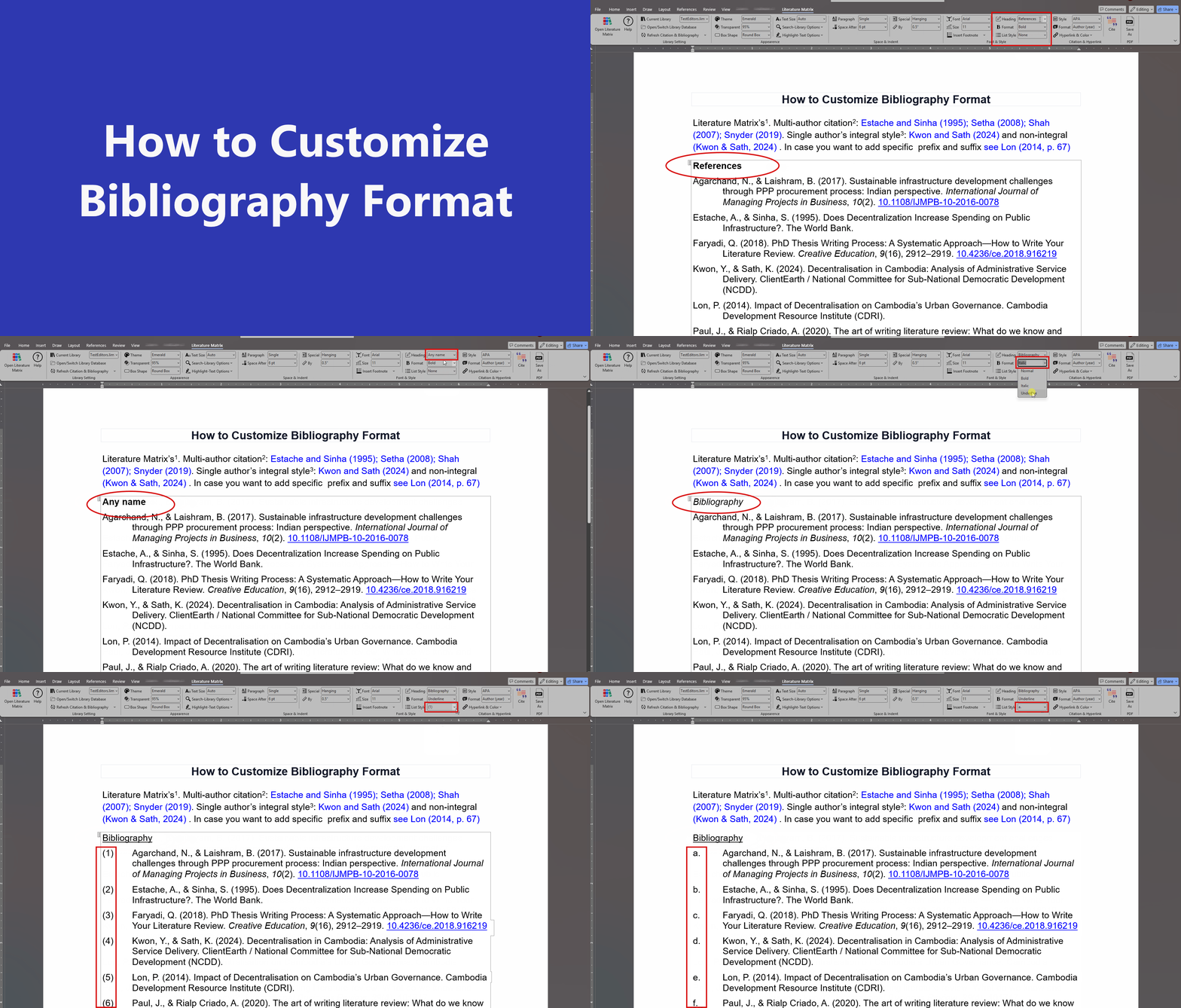
  • • Heading Title: "None", "Bibliography", "References", "Works Cited".
  • • Format: "Normal", "Bold", "Italic", "Underline".
  • • List Style: Bullets, Numeric (1), [1], (1), or custom list formatting.

6. Citation & Hyperlink

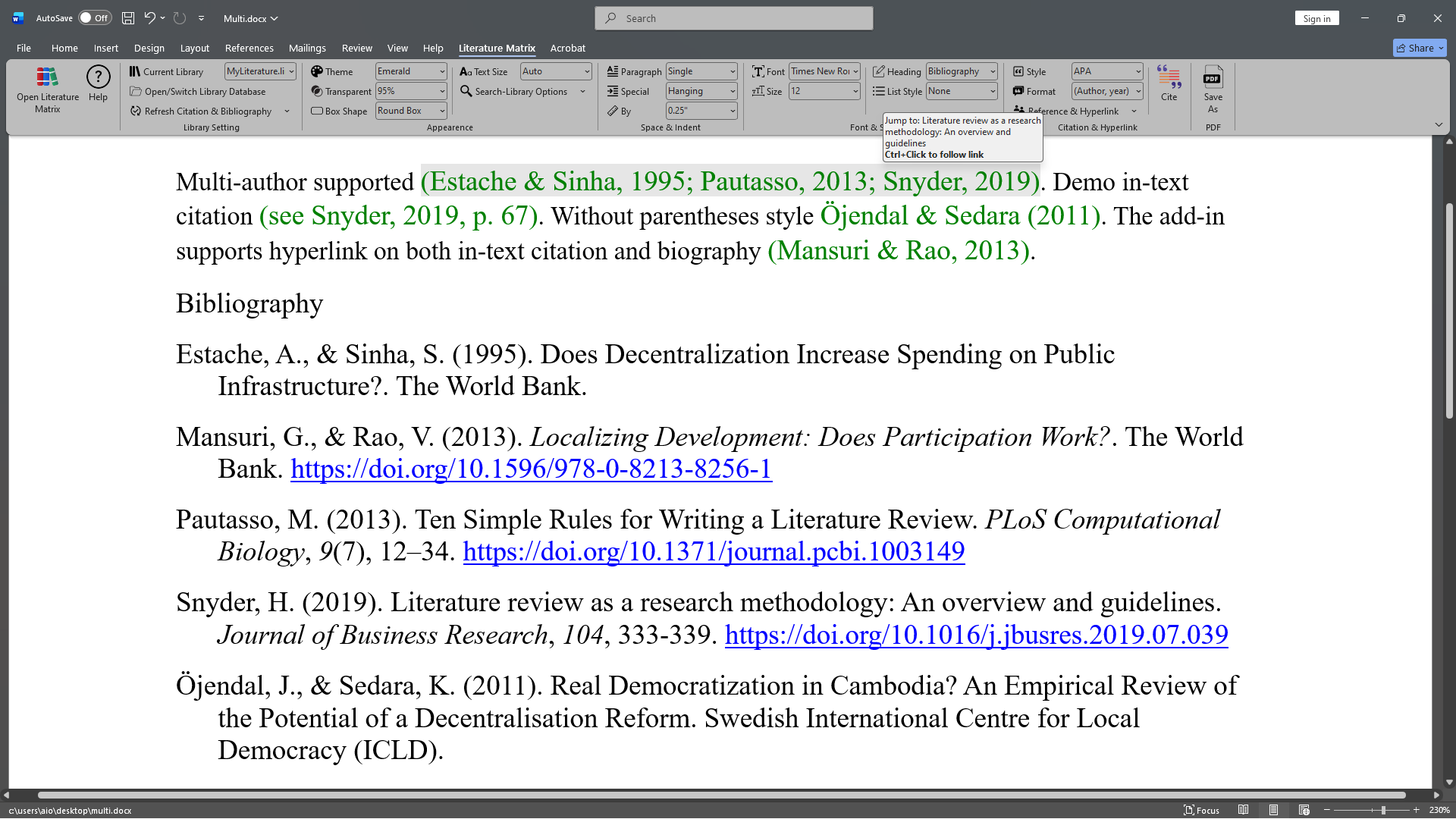
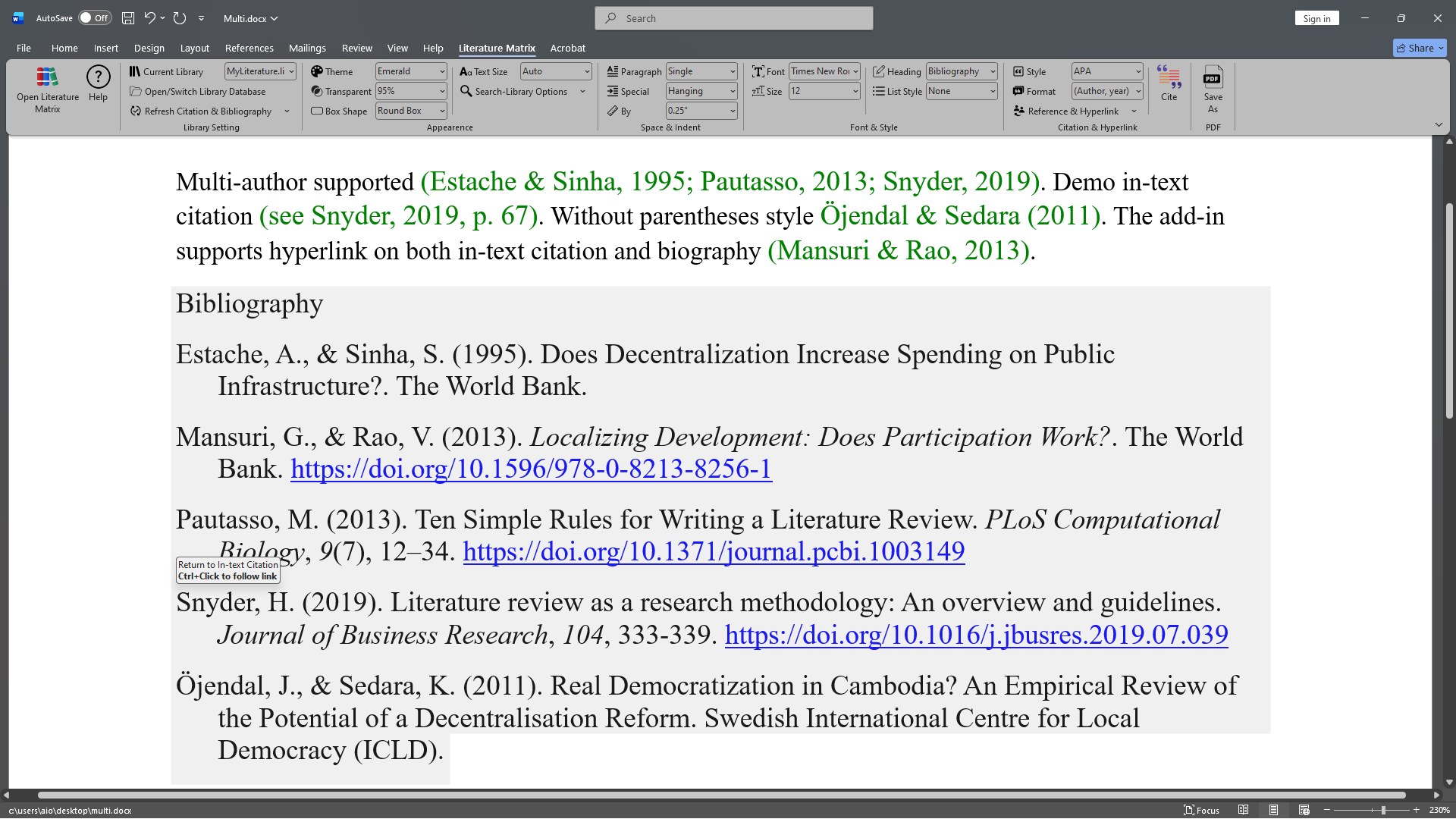
  • • Styles: APA, MLA, Chicago, Harvard, Vancouver.
  • • Format: Author (year) or (Author, year).
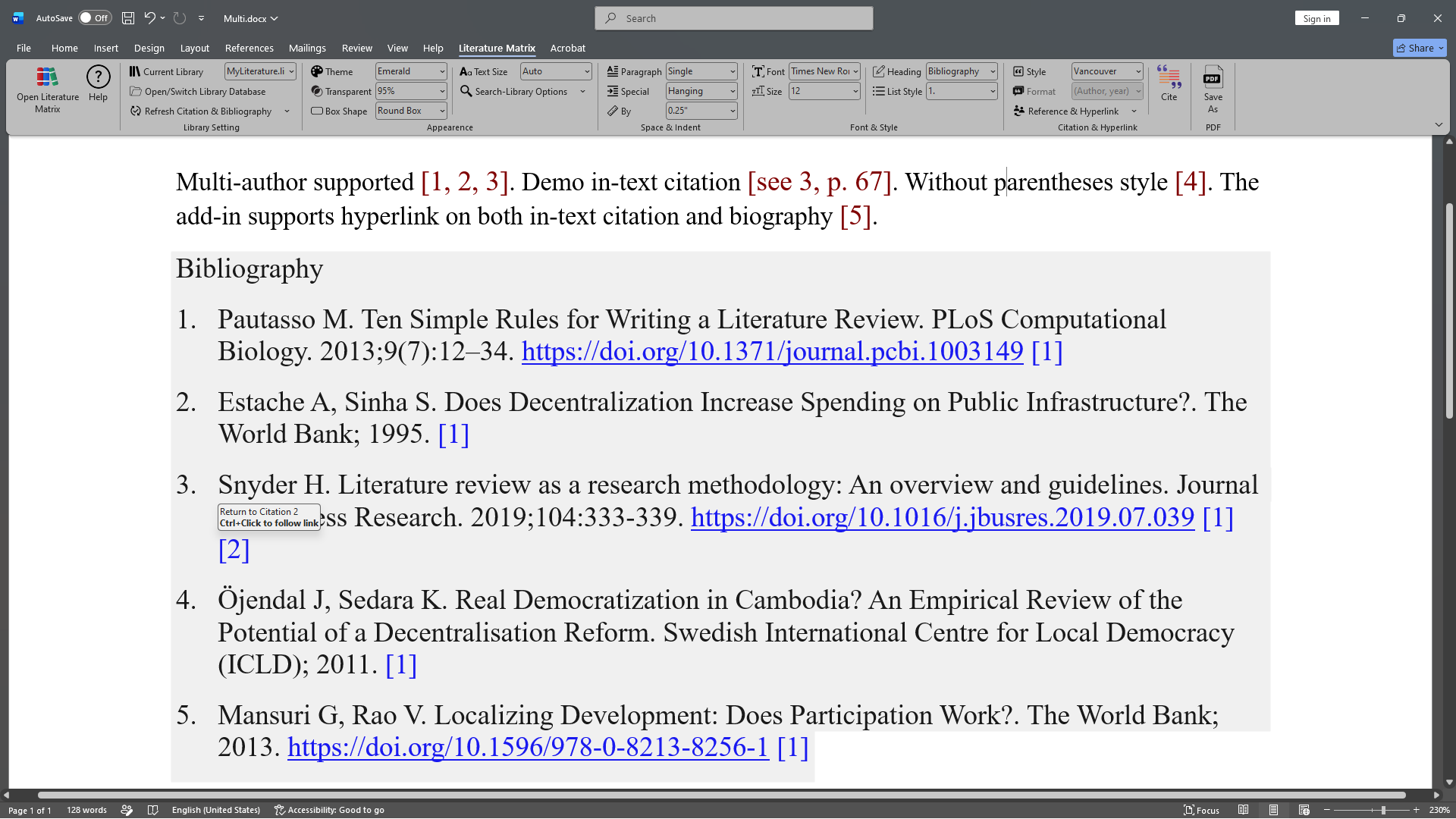
  • • Hyperlinks: Active two-way links & back-references.
  • • Cite Button: Quick Search trigger (Alt+C).

7. Save As PDF

• Instantly cleans up Word field shading and exports your document layout cleanly to PDF while preserving bookmarks and active hyperlinked citations.

8. Right-Click Context Menu

  • • Edit Format: Switch between Author (year) & (Author, year).
  • • Edit Prefix/Suffix: Add custom text (e.g., "see", "p. 67").
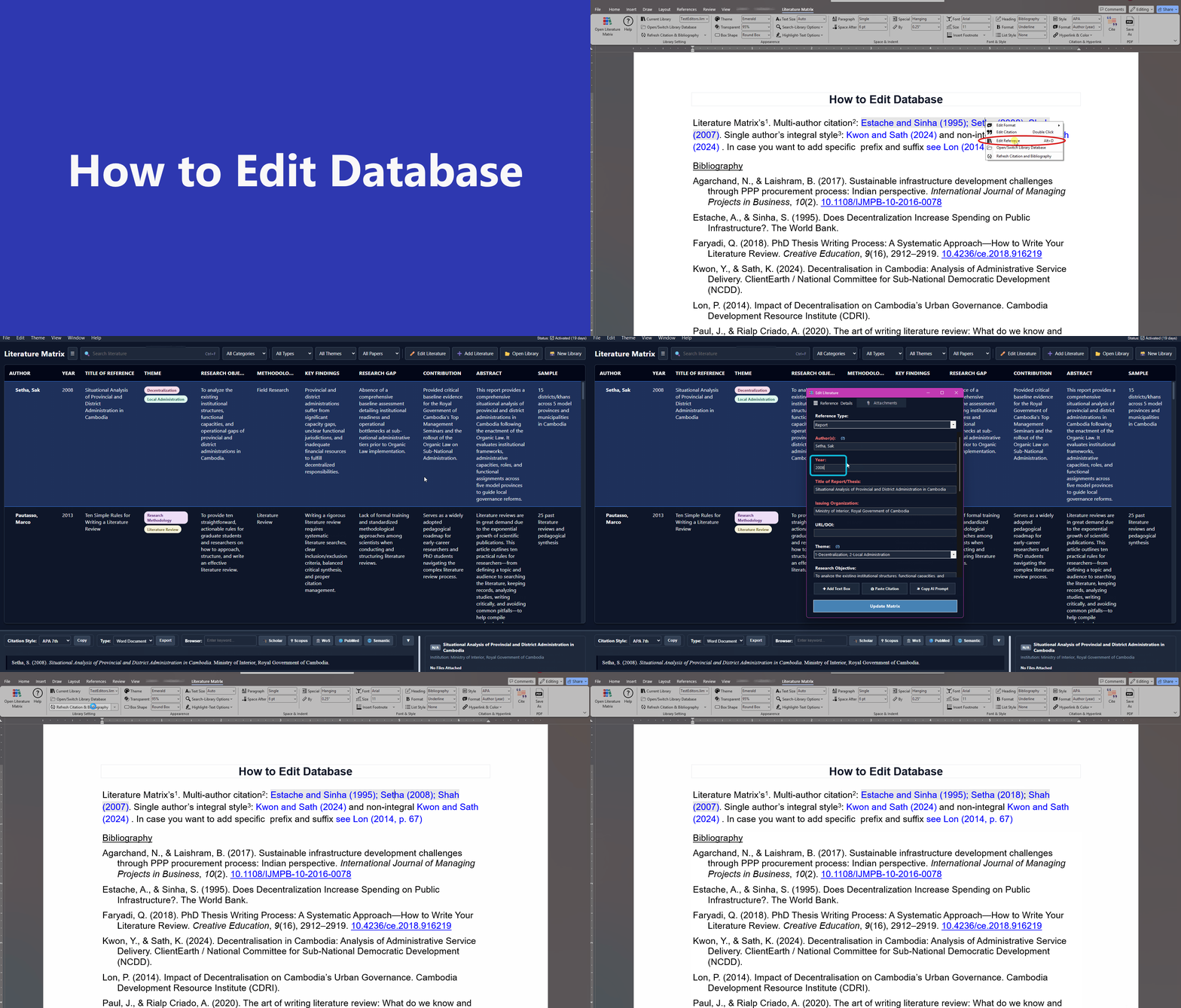
  • • Edit Reference: Open master database to edit source details.
  • • Switch Library & Refresh: Quickly re-sync references on demand.
Word Ribbon Hotkeys

Word Add-in Shortcuts

Speed up document citations directly inside Microsoft Word.

Switch App/WordAlt + A
Jump to RibbonAlt + S
Format: Author (year)Alt + Z
Format: (Author, year)Alt + X
Full Format (Footnote)Alt + F
Quick CiteAlt + C
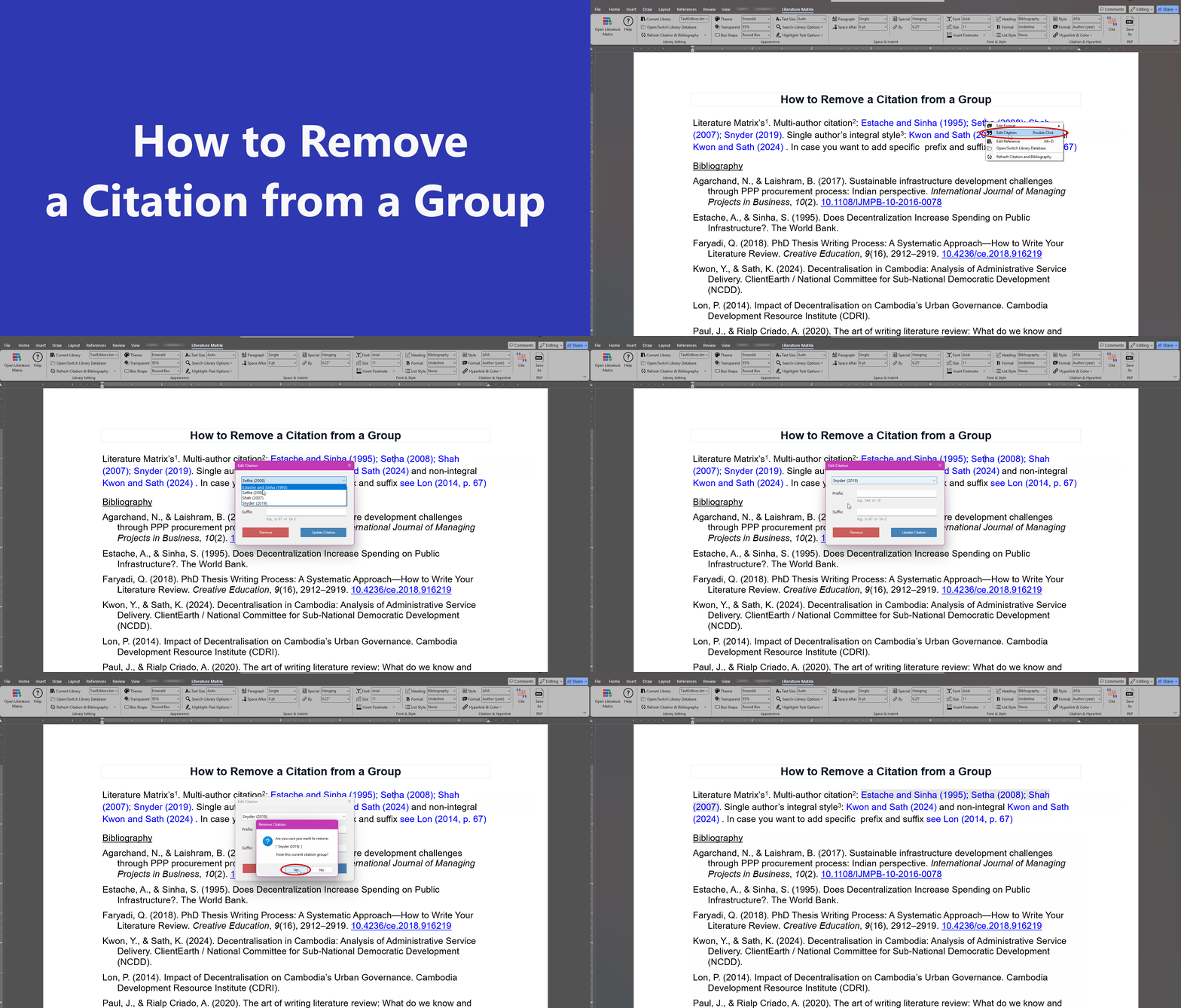
Edit CitationDouble Click
Edit DatabaseAlt + D
Simple & Transparent

Pricing Plans

Choose the plan that best fits your research needs. All plans include full access to the Desktop App and Word Add-in.

🎁

Special 30% Discount!

Grab your license at a massive discount before the timer ends.

00Days
00Hours
00Mins
00Secs

1 Month

1 Device

Save $5

3 Months

1 Device

Popular • Save $15

6 Months

1 Device

Save $35

1 Year

1 Device

Best Value
👑

Lifetime

4 Devices

Video Tutorials & Guides

Learn how to maximize your research productivity with these step-by-step guides.

Getting Started: Installation & Setup

Learn how to install the app and configure the Word Add-in.

Mastering the Central Database

How to import RIS/BibTeX files and organize your literature.

Word Add-in: Citing & Formatting

Using Alt+C, customizing styles, and generating bibliographies.

Using the AI Prompt Generator

Speed up your workflow by generating prompts for external LLMs.

Advanced Features: Mindmaps & Analytics

Visualizing your database connections and research trends.

Download & Updates

Get the latest standalone Literature Matrix desktop client and Word Ribbon Add-in bundle.

🎁 14-Day Free Trial Included — Test all features freely with no credit card required!

Literature Matrix Bundle

Includes Desktop App + Word Add-in + Sample Database

v1.3.3 Latest
⭐ Recommended 📦 Download Setup Package (.zip) ⬇️ Download Installer (.exe)

Compatible with Windows 10 & 11. Requires Microsoft Word 2016 or newer.

💡

Recommended Installation

Because this is a new release, Windows SmartScreen may flag the direct .exe installer. To prevent this, we recommend downloading the .zip setup.

  • Extract the downloaded .zip folder.
  • Right-click and run the 1_Run_Me_First.bat file to securely install our publisher certificate.
  • The installer will then launch Literature Matrix.exe automatically and ask your permission!

📝 Release History & Changelog

Help Center

User guides, tutorials, and documentation.
🔍

📖 1. Main Application

📝 2. Word's Add-in

📄

No topics found

We couldn't find anything matching your search. Try different keywords.

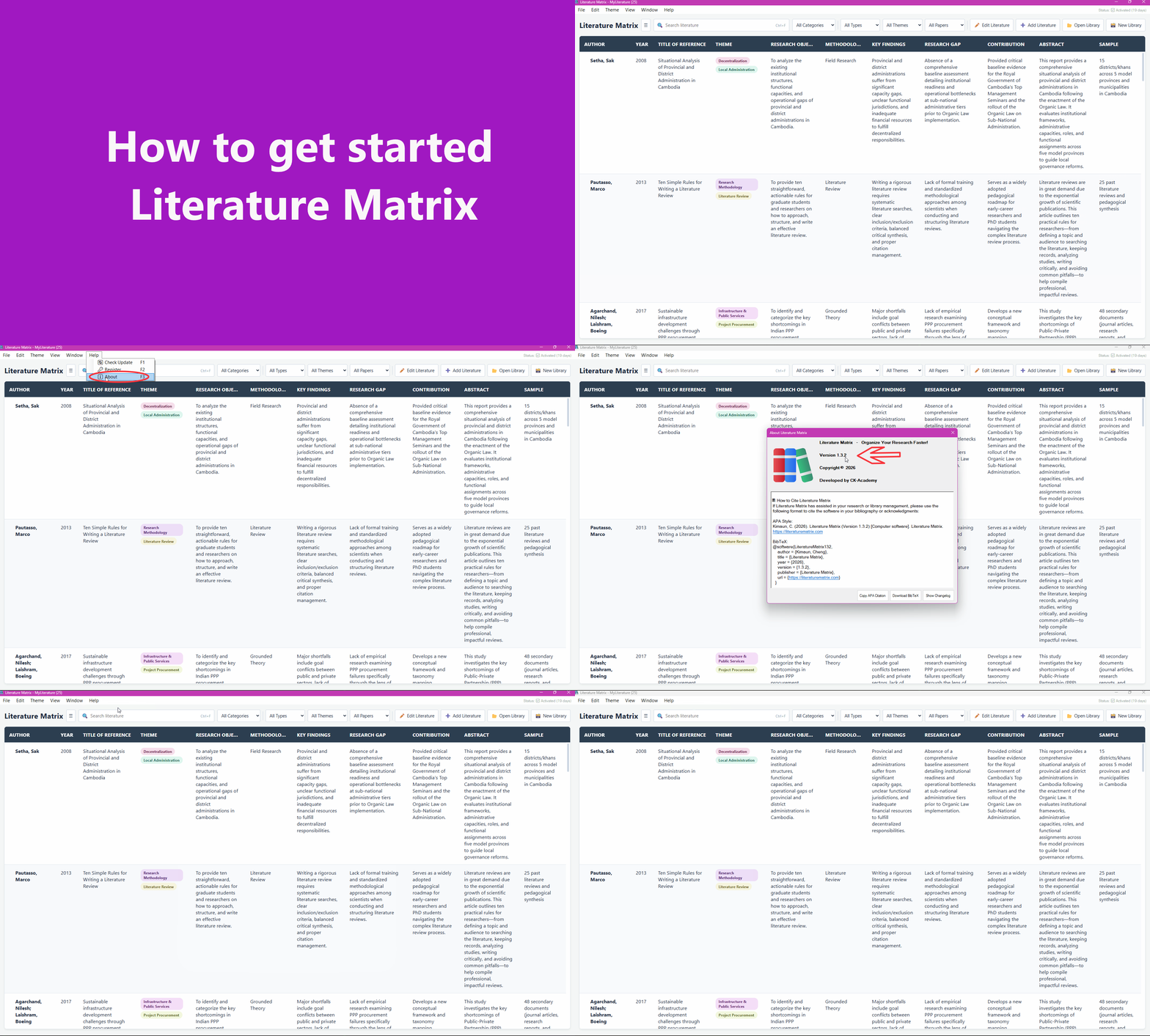
Main Application

How to Get Started

Launch Literature Matrix, explore your workspace layout, and verify your database connections before beginning your research flow.

Get Started Preview
Main Application

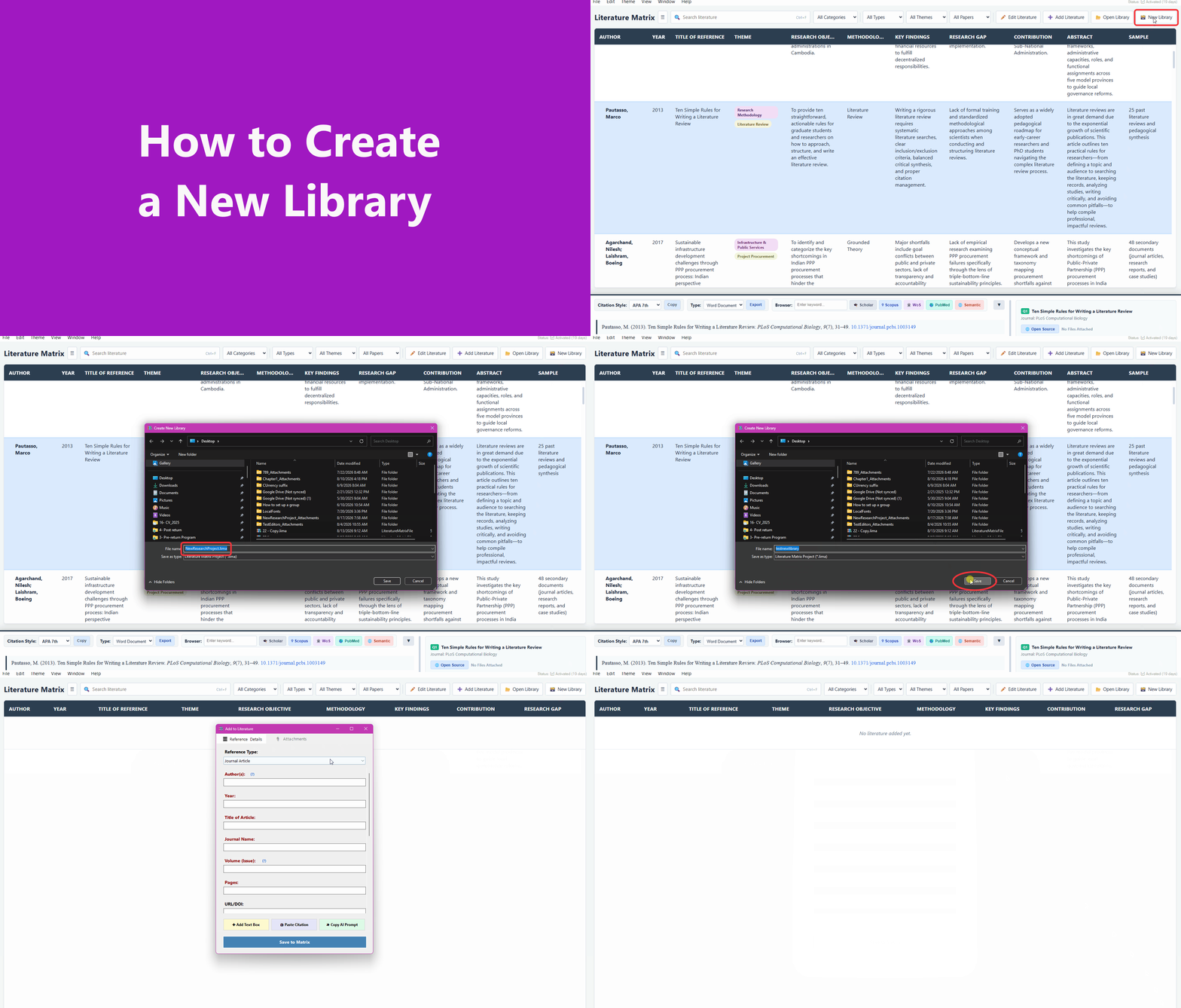
How to Create a New Library

Press Ctrl + N or click "New Library" in the toolbar to generate a completely fresh, isolated database file for your new project.

Create Library Preview
Main Application

How to Open a Library

Press Ctrl + O or click "Open Library" in the toolbar to load an existing database (.lima, .litma, or .litsync) into your workspace.

Open Library Preview
Main Application

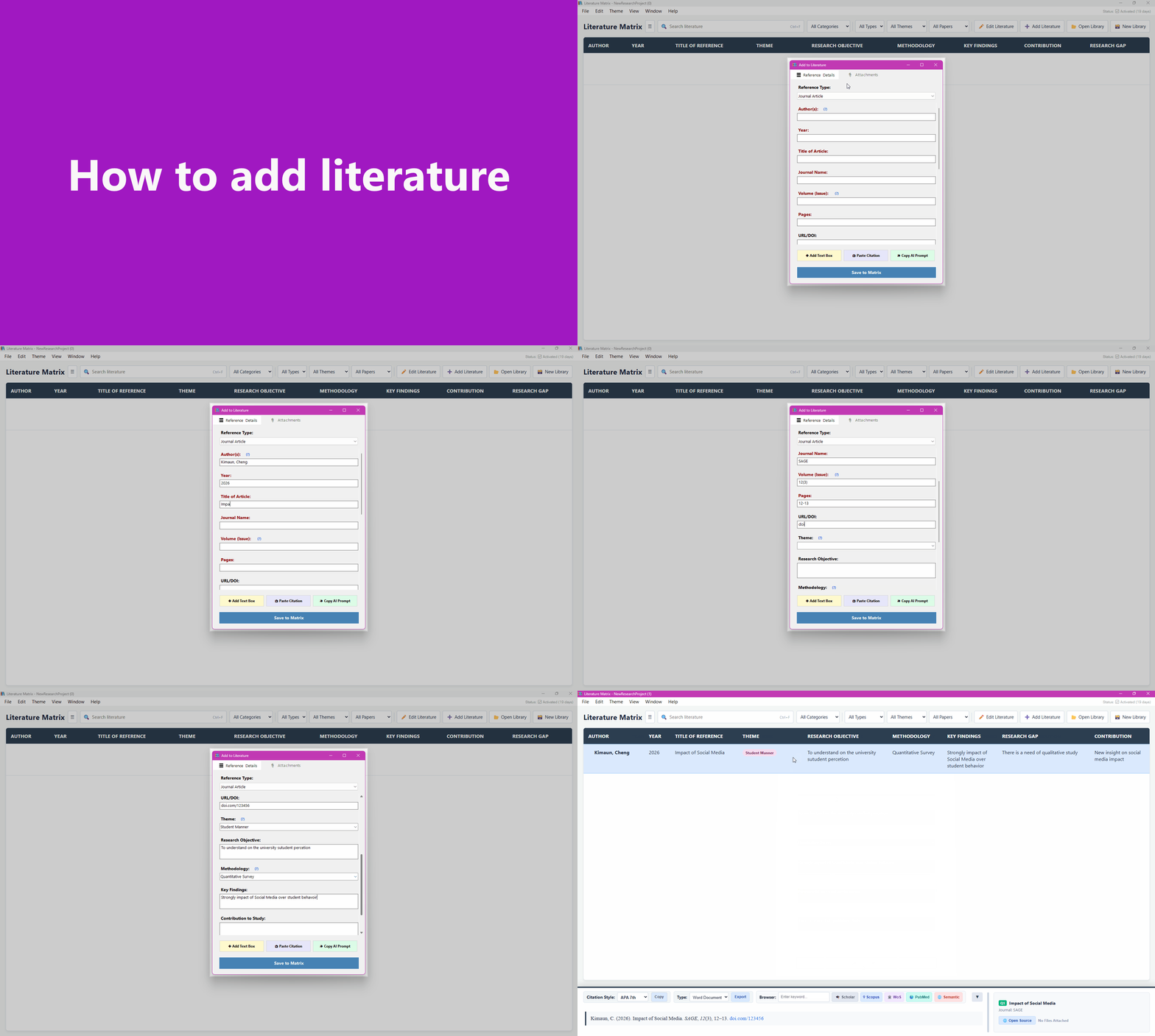
How to Add Literature

Press Ctrl + L, click "Add Literature", or right-click the matrix to add a new entry manually. You can also drag and drop .ris, .bib, or .enw files to import references instantly.

Add Literature Preview
Main Application

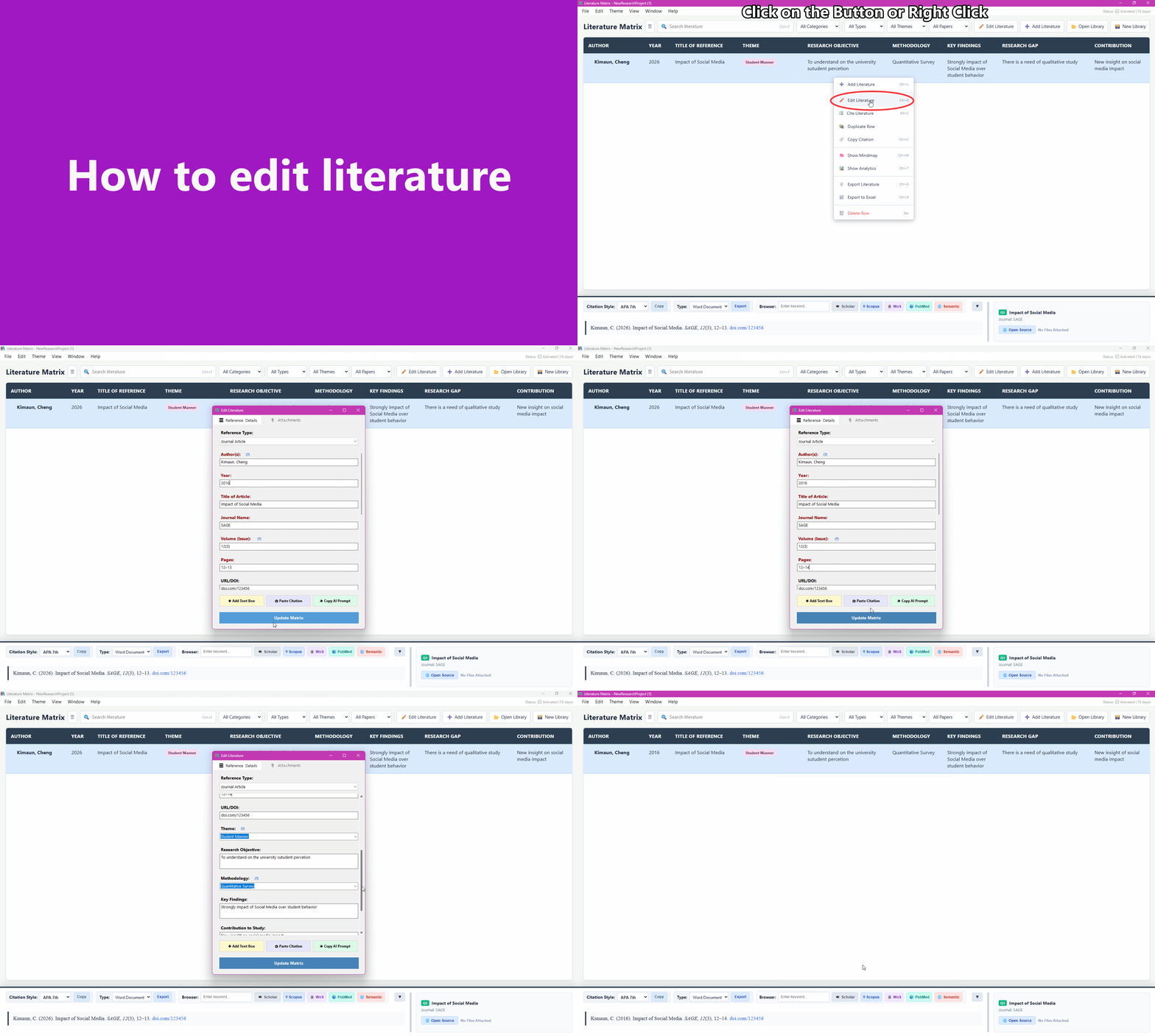
How to Edit Literature

Press Ctrl + E, click the Edit button in the toolbar, or double-click any row in the matrix to open the literature editor.

Edit Literature Preview
Main Application

How to Paste Citation from Google Scholar / Journal

Quickly add references without downloading files. Simply copy the formatted citation text (or BibTeX/RIS string) directly from Google Scholar or any academic journal website, and use the Paste Citation feature to instantly extract the metadata into your database.

Paste Citation Preview
Main Application

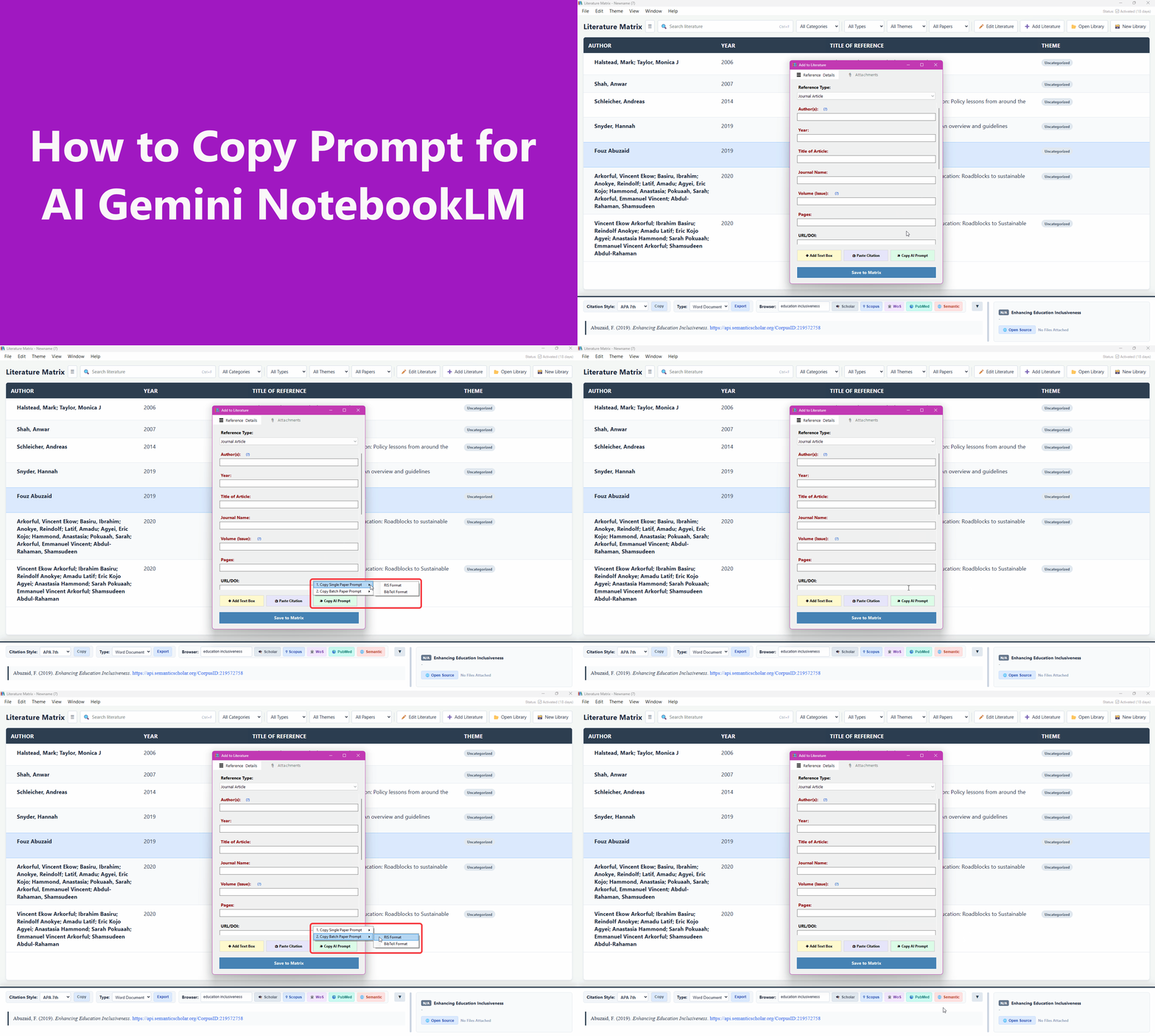
How to Copy Prompt for AI

Bridge your library with advanced AI. Use the prompt generator to create and copy highly optimized instructions. Paste this prompt into Gemini NotebookLM (or other AIs capable of summarizing documents) alongside your PDFs to extract structured data and insights perfectly formatted for your database.

Copy AI Prompt Preview
Main Application

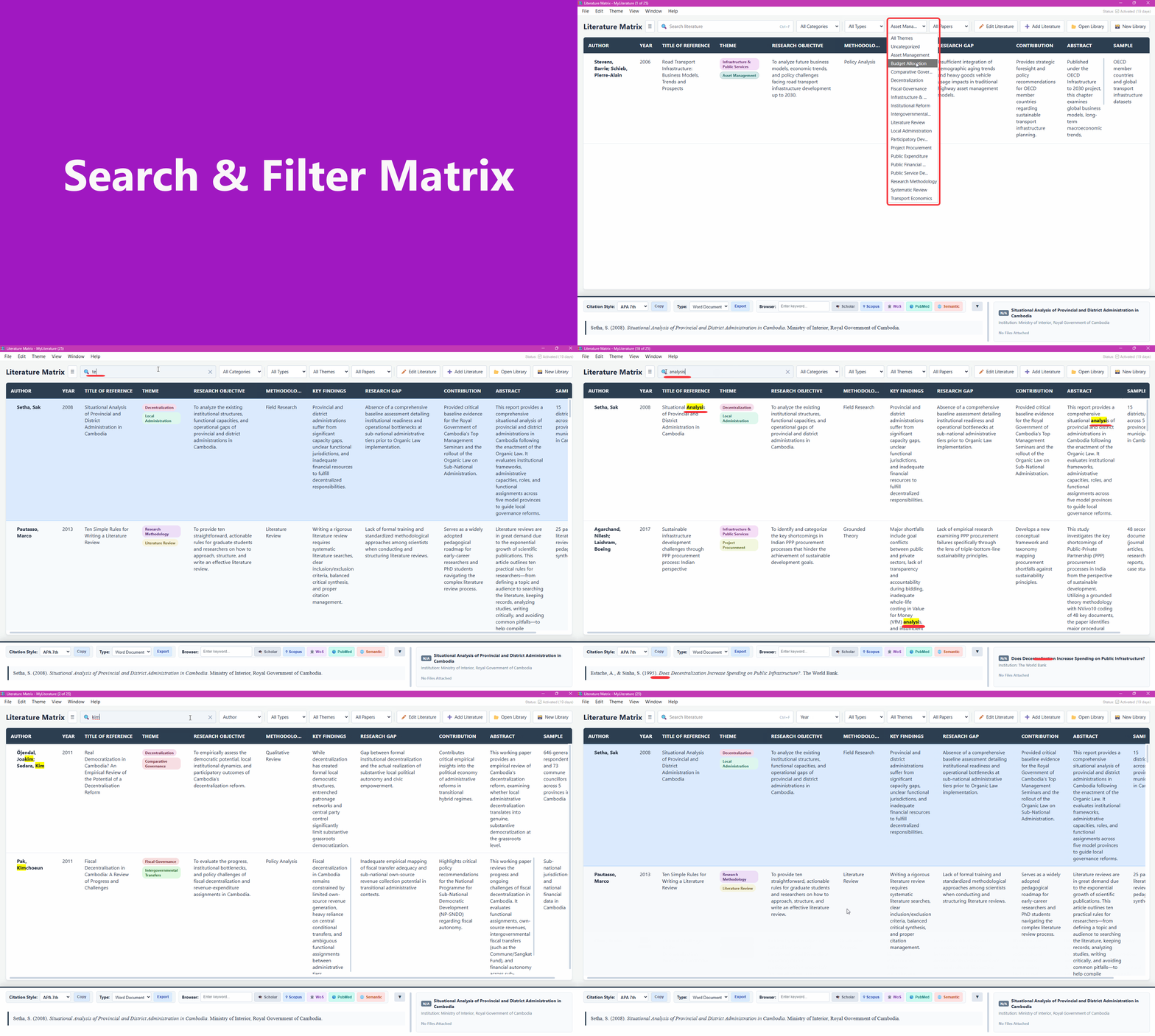
How to Search & Filter Matrix

Use Ctrl + F to focus the search box. You can filter your literature by Category, Reference Type, Assigned Theme, and Attachment Status (PDF attached or missing) using the top toolbar dropdowns.

Search and Filter Preview
Main Application

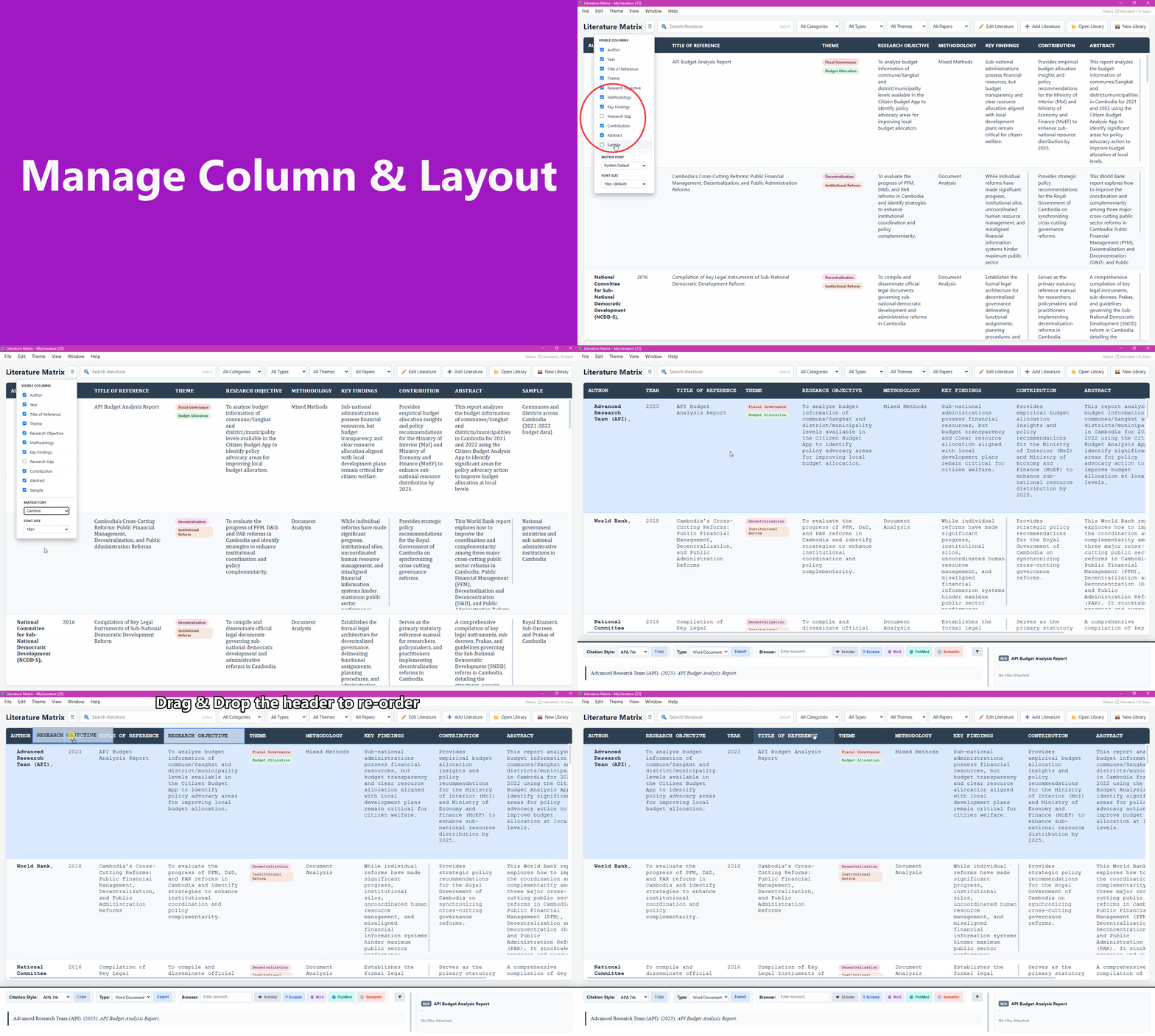
How to Manage Columns & Layout

Drag column headers left or right to reorder them. Click the hamburger menu (☰) to toggle the visibility of specific columns, or adjust the Matrix Font and Font Size dynamically. Note: The first 3 columns are permanently pinned (Freeze Panes).

Column Management Preview
Main Application

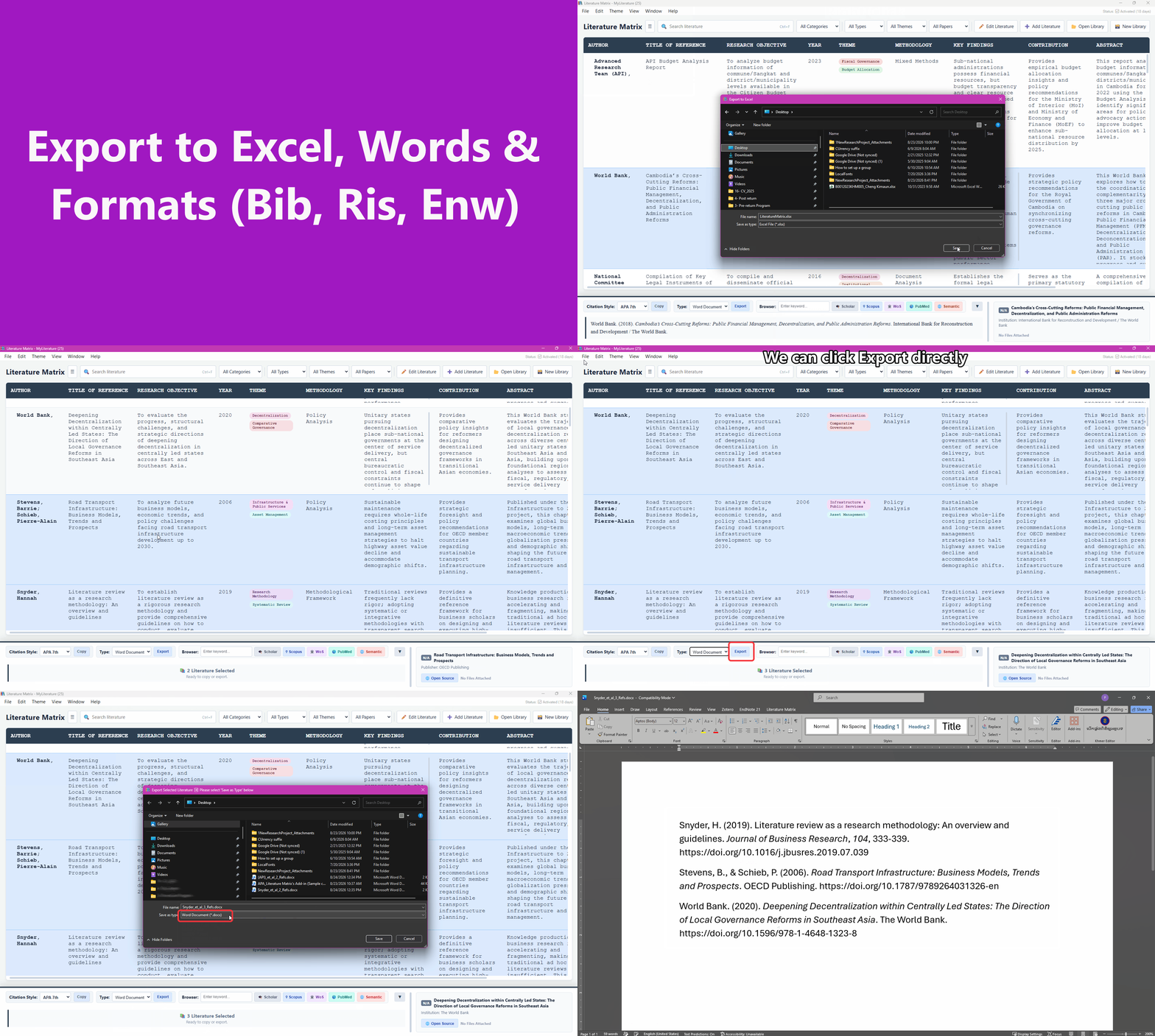
How to Export to Excel & Formats

Press Ctrl + X to export the visible matrix table directly into an Excel (.xlsx) file. You can also right-click rows to export specific references to Word (.docx), RIS, BibTeX, or EndNote formats.

Export Preview
Main Application

How to Import References

Import your existing literature seamlessly. Literature Matrix supports .bib, .ris, and .enw files. You can use the "Import" option from the file menu or simply Drag & Drop the files directly into the application.

Import References Preview
Main Application

How to Save As

Duplicate or rename your active database by using the Save As function. This safely creates a new copy of your library file in your chosen directory without altering the original.

Save As Preview
Main Application

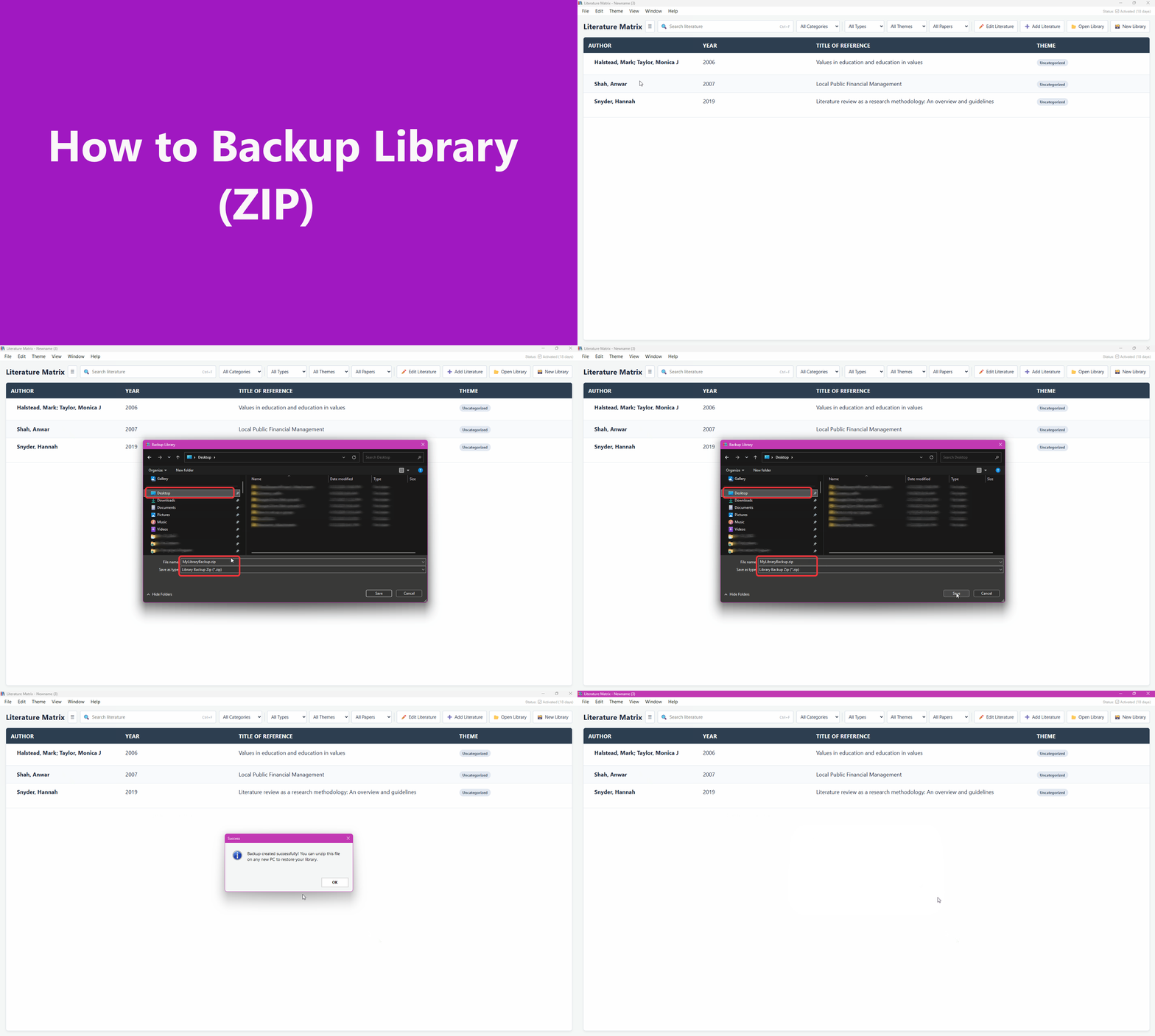
How to Backup Library (ZIP)

Secure your entire library, including all linked PDF attachments, by creating a comprehensive ZIP backup. This is the recommended method when you need to safely copy or move your library to another PC.

Backup Library Preview
Main Application

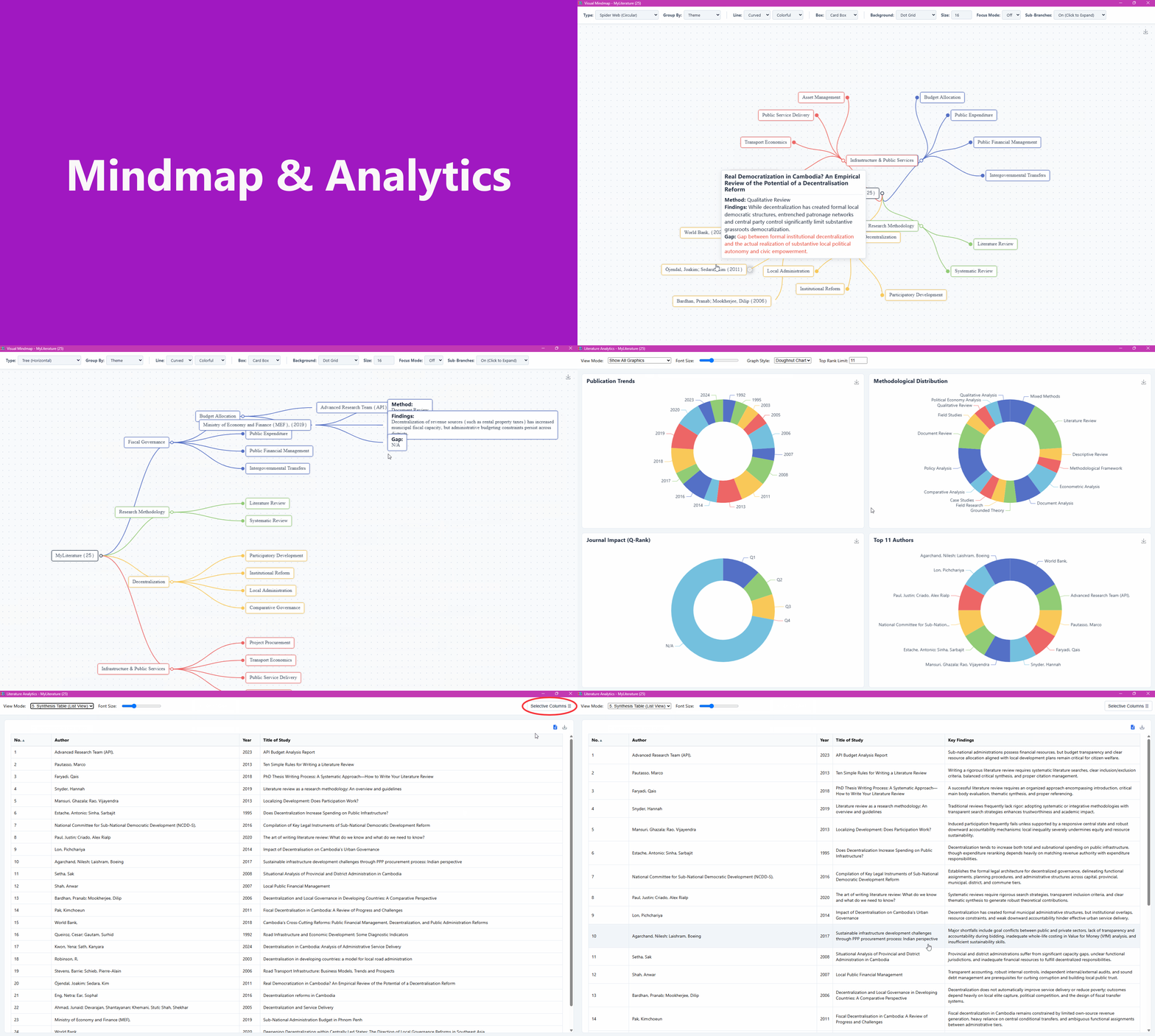
Mindmap & Analytics

Right-click the matrix and select "Show Mindmap" (Ctrl + M) or "Show Analytics" (Ctrl + T) to visualize your research groupings, themes, and journal ranks dynamically.

Mindmap Preview
Main Application

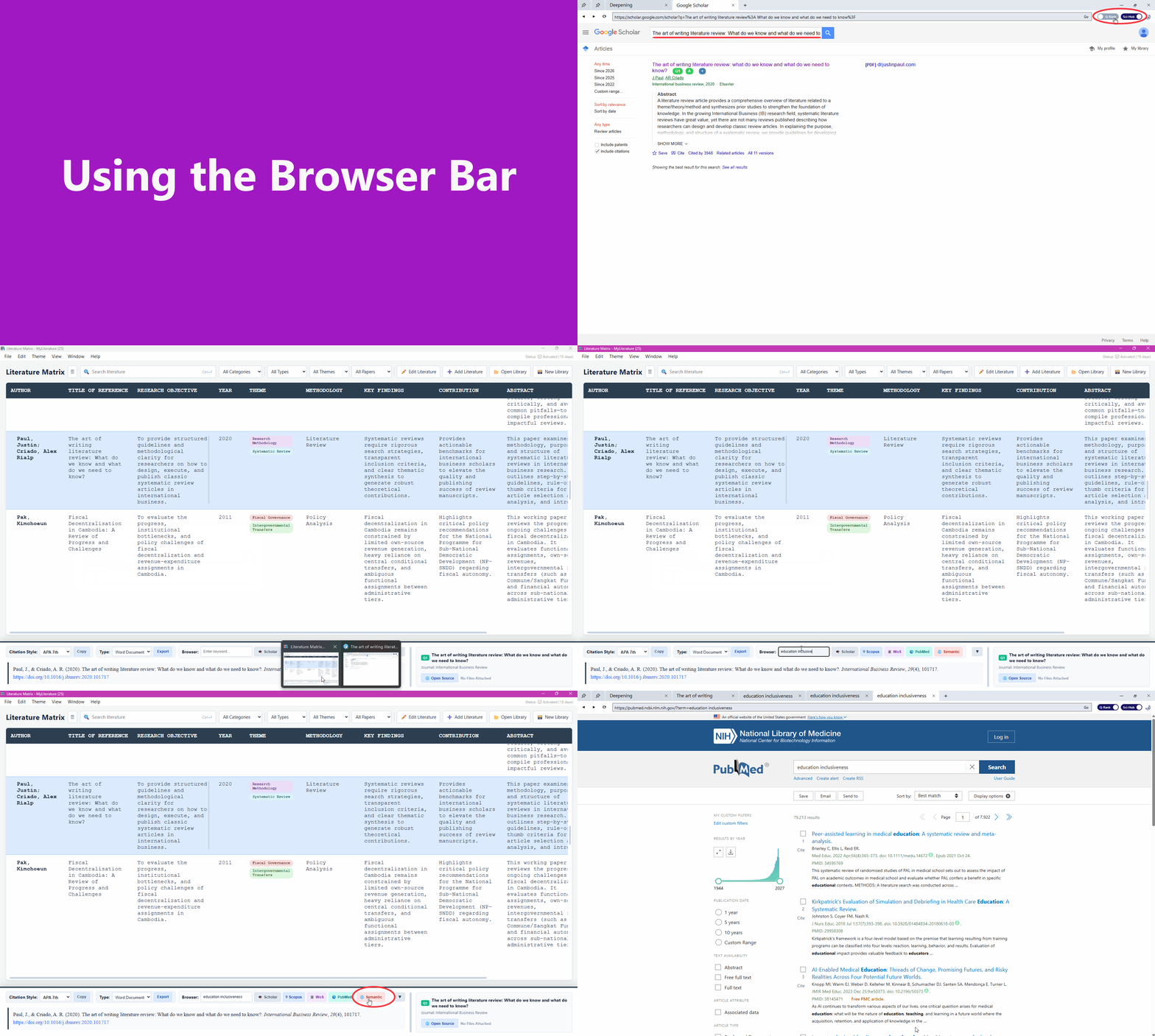
Using the Browser Bar

The internal browser bar allows you to search selected references directly across Google Scholar, Scopus, Web of Science, PubMed, and Semantic Scholar without leaving the application.

Browser Bar Preview
Word's Add-In

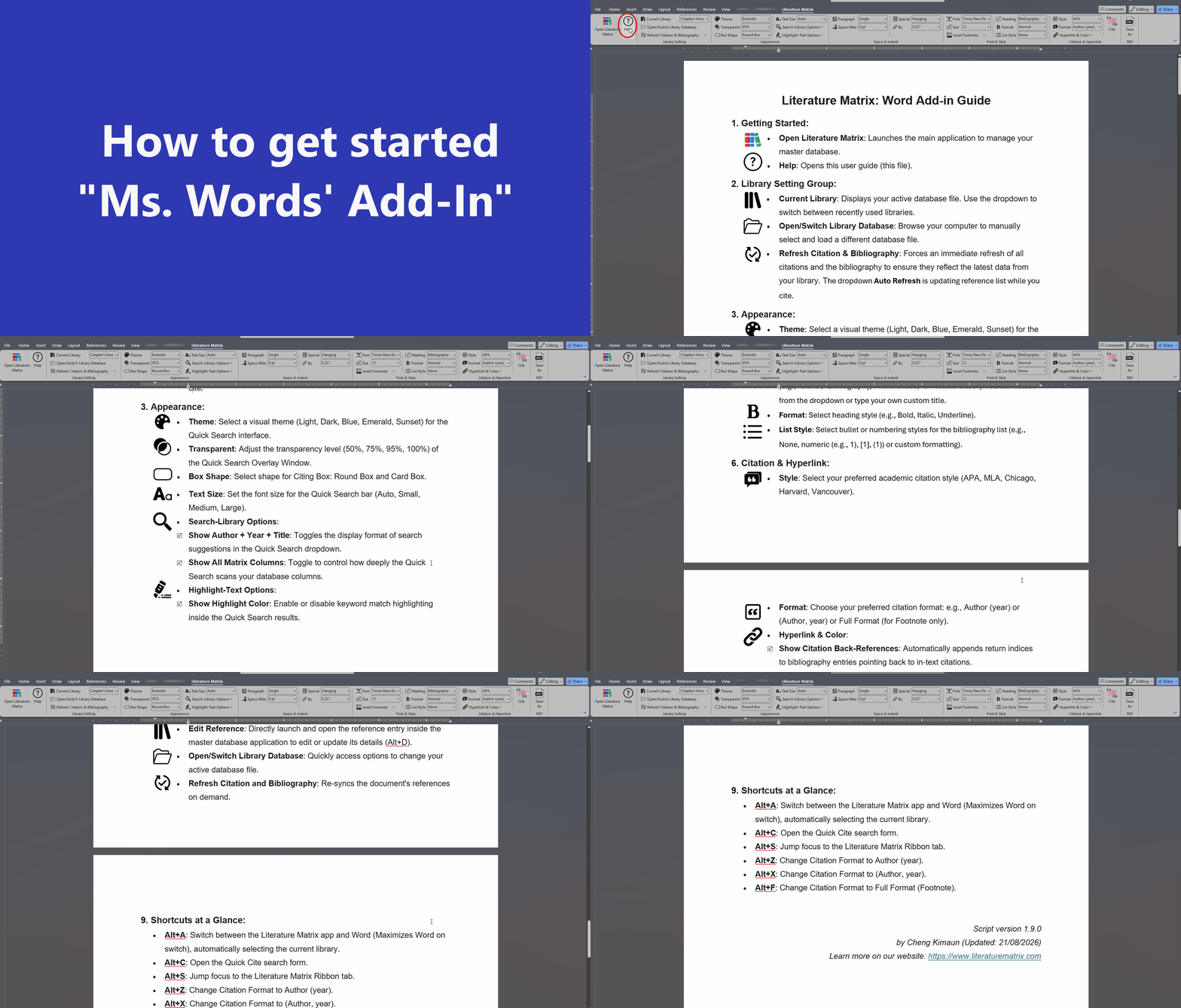
How to Get Started

Learn how to activate the Literature Matrix add-in inside Microsoft Word and authorize your first connection.

Word Add-in Getting Started
Word's Add-In

How to Open Library

Click "Open Library File" in the ribbon to browse your computer for a database, or quickly switch your active database using the "Active Library" dropdown.

Add-in Open Library Preview
Word's Add-In

How to Switch App & Word

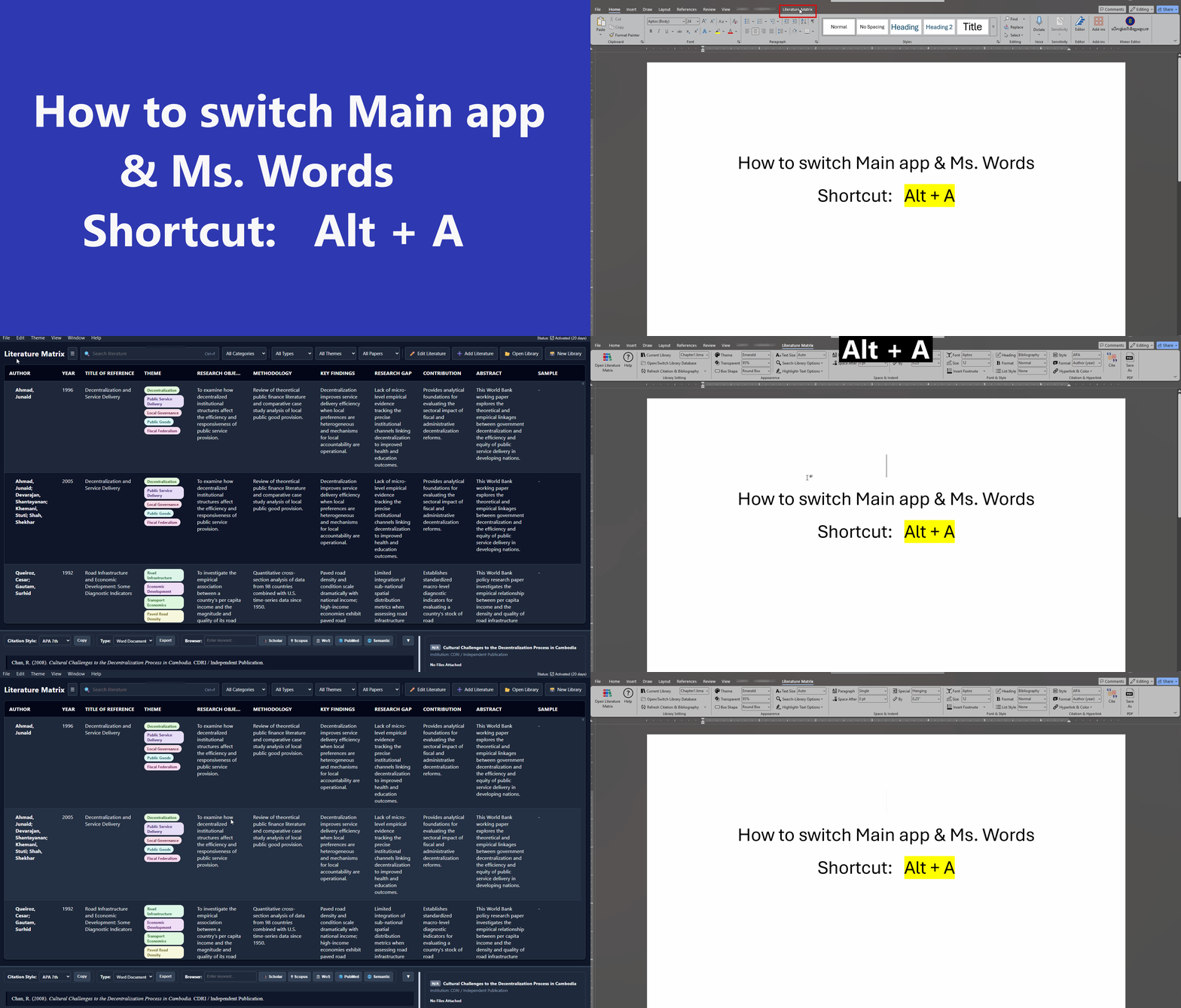
Press Alt + A or click "Open Main App" in the ribbon to seamlessly toggle your view between the Literature Matrix main application and Microsoft Word.

Switch Apps Preview
Word's Add-In

How to Customize Theme

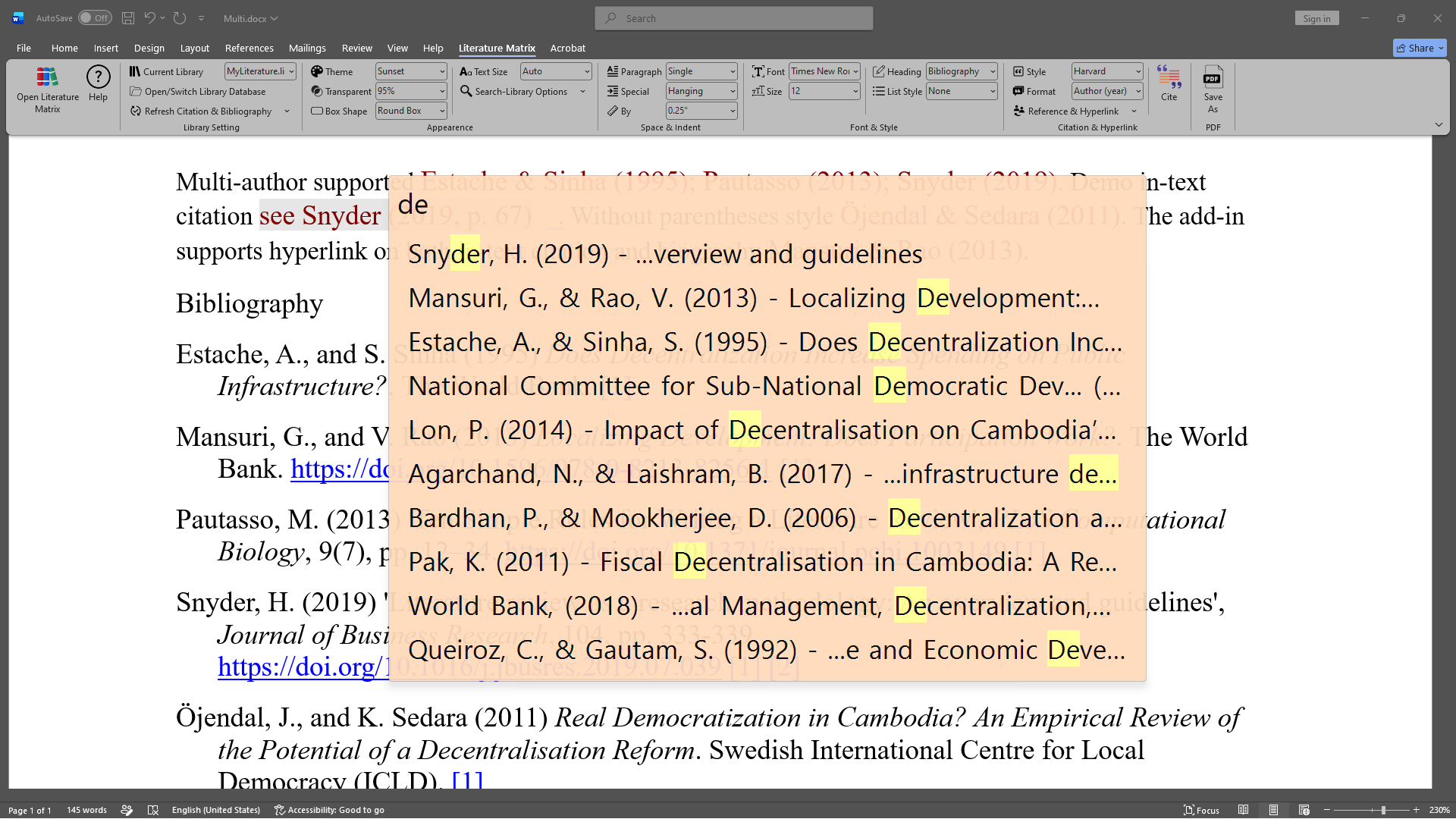
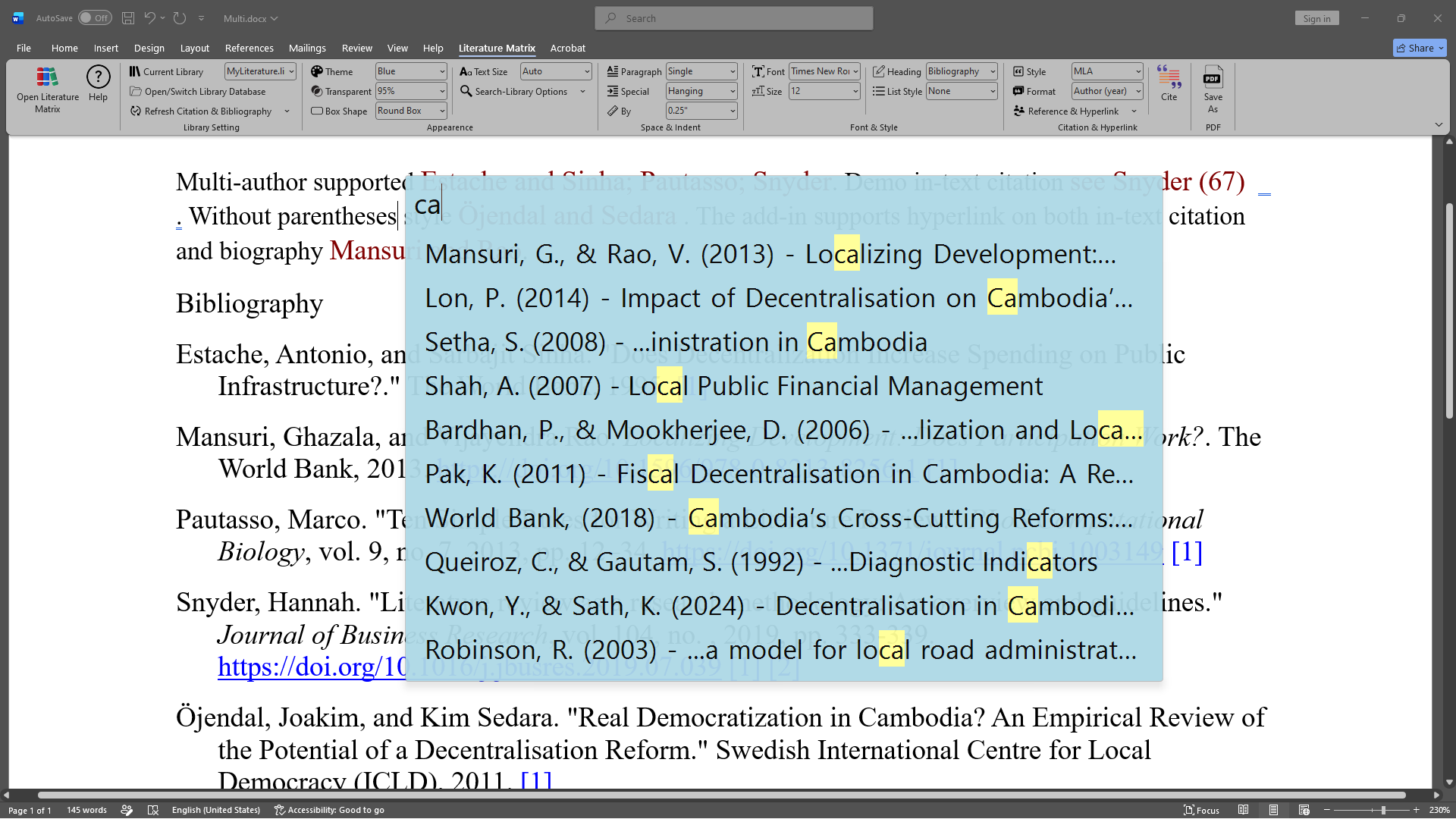
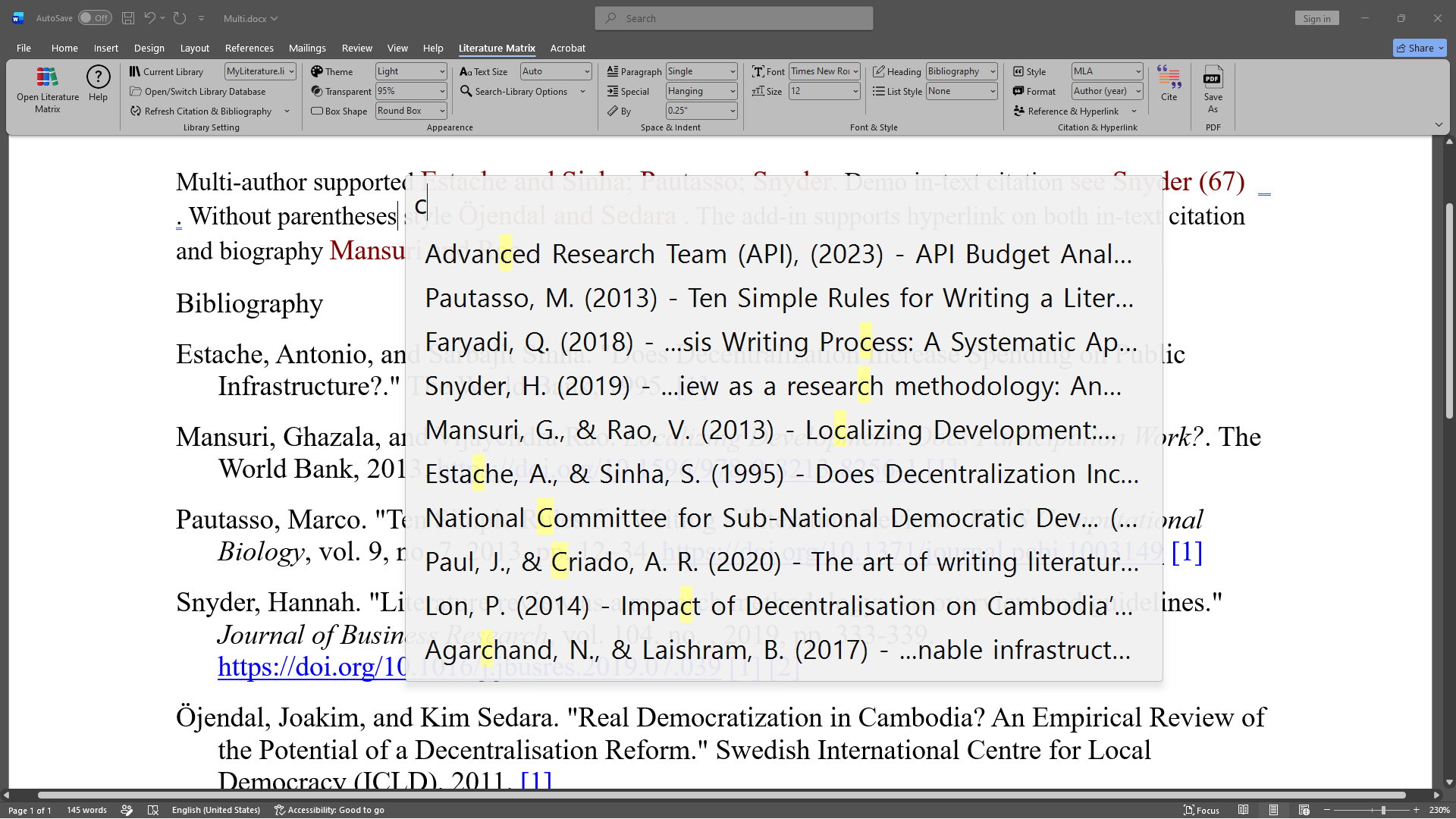
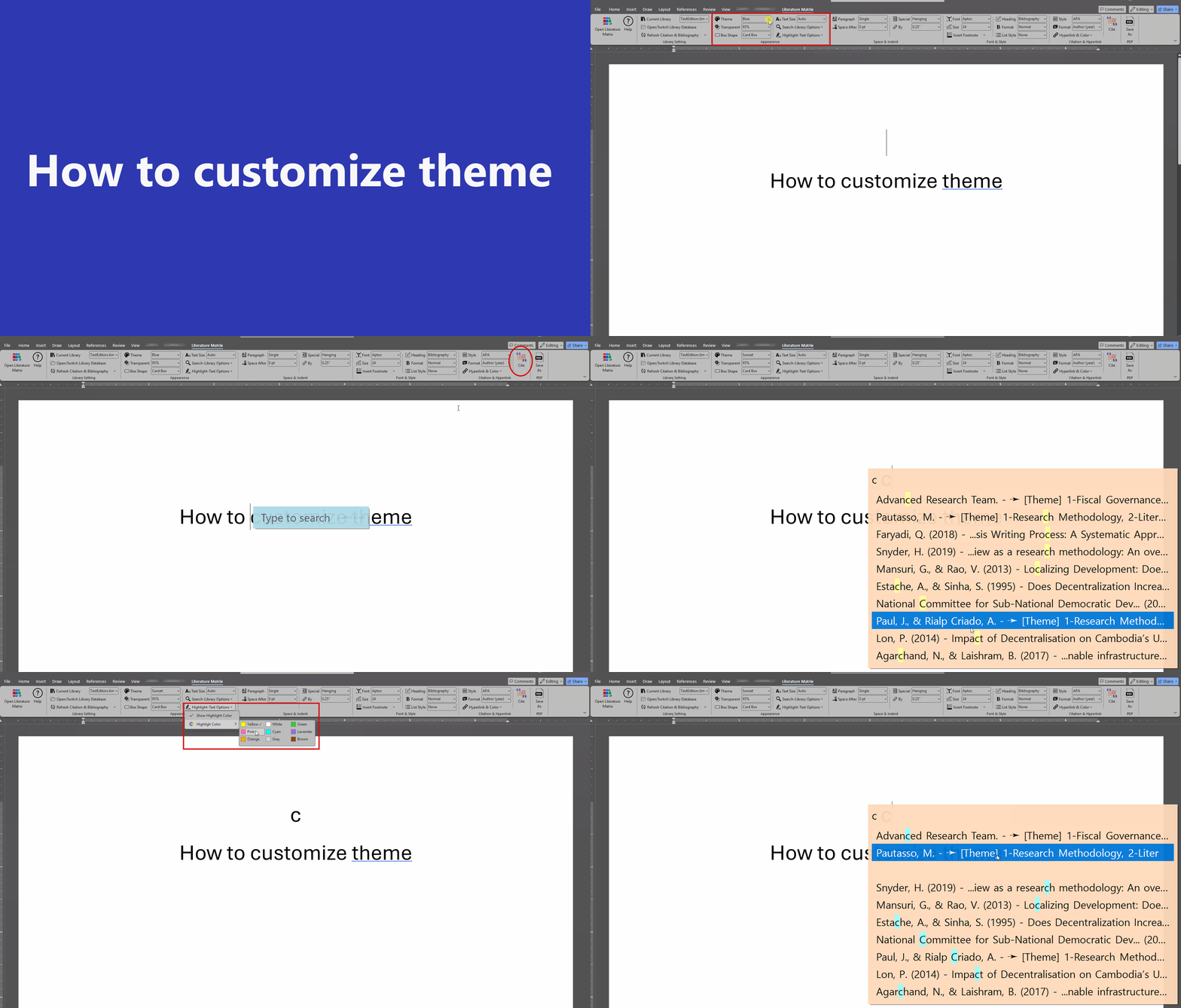
Customize the floating Quick Search panel by selecting a "Search Bar Theme" (Light, Dark, Blue, Emerald, Sunset) and adjusting the "Search Bar Transparency" from 50% to 100%. You can also toggle the corners between "Round Box" and "Card Box".

Theme Customization Preview
Word's Add-In

How to Set Space & Indent

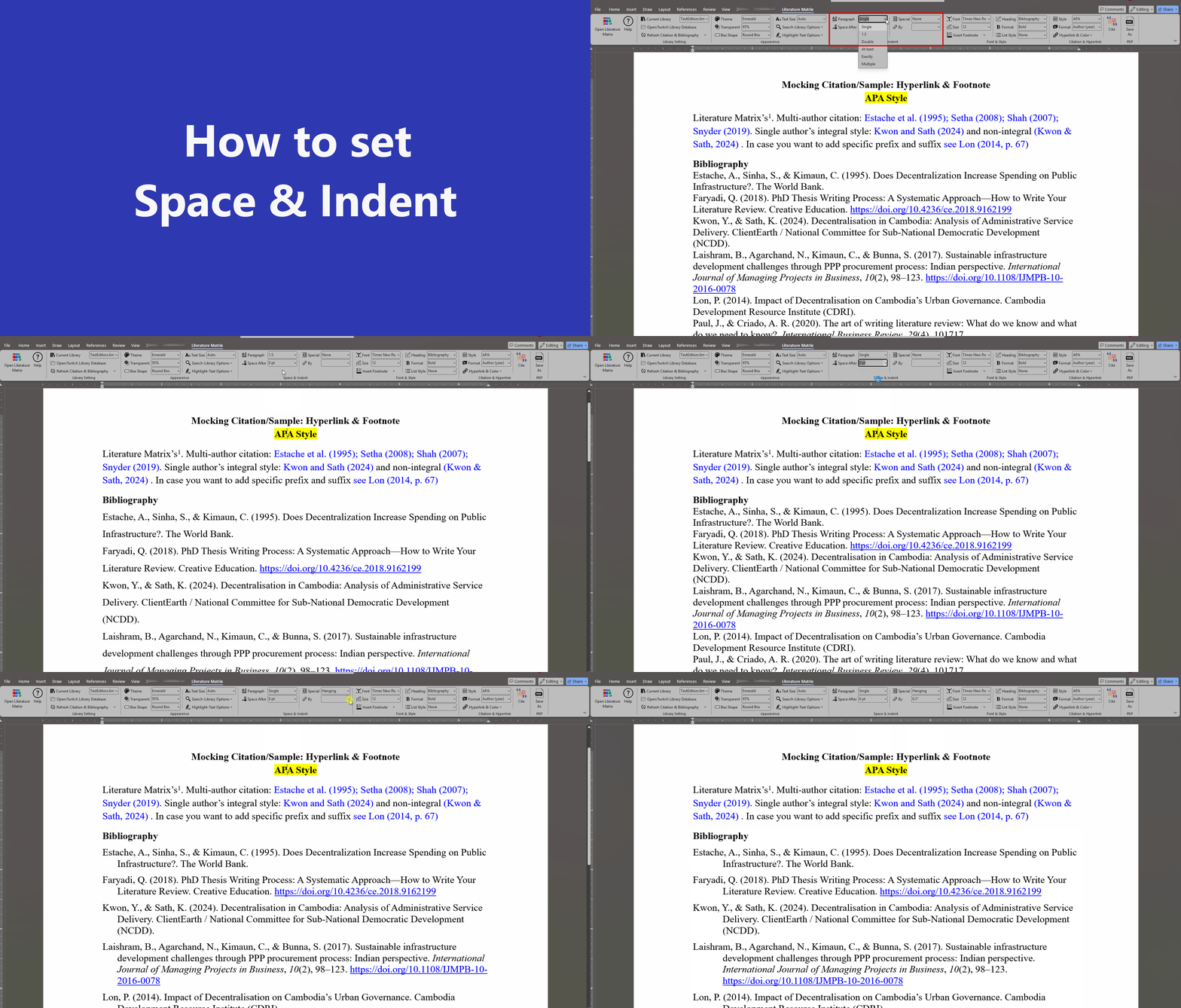
Enforce academic line spacing using the "Line Spacing" and "Space After" dropdowns. Apply special paragraph formatting like "Hanging" indents and set the exact measurement using the "Indent Size" tool.

Space and Indent Preview
Word's Add-In

How to Set Font & Size

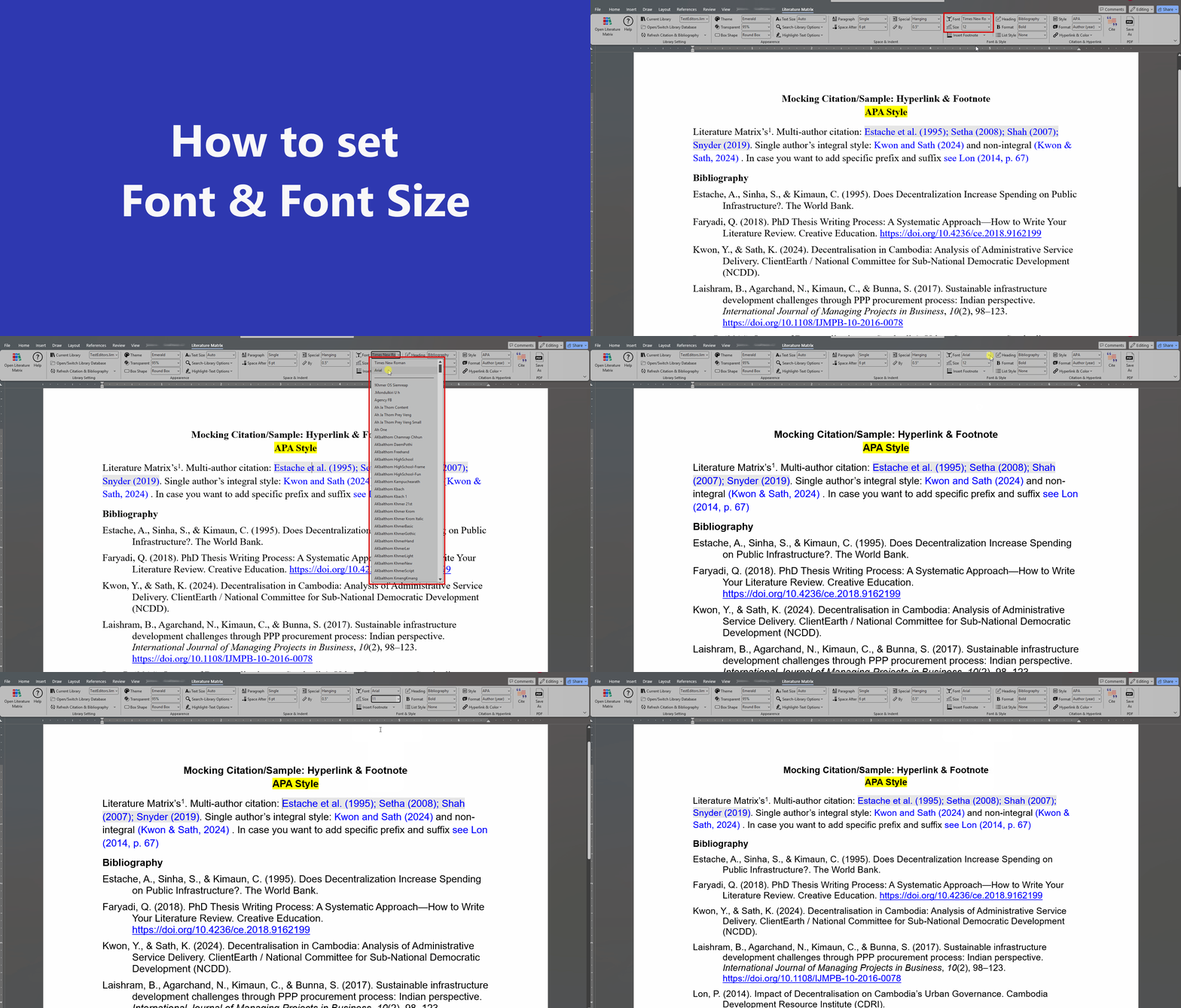
Use the dedicated ribbon controls to instantly adapt all generated citations and reference lists to your exact university or publisher requirements.

Font and Size Preview
Word's Add-In

How to Customize Bibliography Format

Customize your reference list by adjusting the bibliography heading, overall text format, and bullet or numbering styles directly from the ribbon.

Customize Bibliography Format Preview
Word's Add-In

How to Change Academic Style

Instantly reformat your entire document's citations and bibliography to match standard academic styles such as APA, MLA, Chicago, Harvard, or Vancouver.

Change Academic Style Preview
Word's Add-In

Footnotes: Insert & Jump

Click "Smart Footnote" to instantly insert a new footnote at your cursor, or click it while inside a footnote to automatically jump back to the main text. Navigate efficiently using the "Previous" and "Next" buttons.

Footnote Preview
Word's Add-In

How to Cite (Quick Cite)

Press Alt + C to open the Quick Search panel. You can easily switch modes using Alt + Z for integral mode, Alt + X for non-integral mode, or Alt + F for full footnote format.

Quick Cite Preview
Word's Add-In

How to Remove a Citation from a Group

To remove specific sources from a multi-citation group, simply Double Click or Right Click the citation block and select "Edit Citation".

Remove Citation Preview
Word's Add-In

How to Edit Database

Quickly access and modify your master database directly from Word. You can Right Click a citation and select "Edit Reference", or use the Alt + D keyboard shortcut.

Edit Database Preview
Word's Add-In

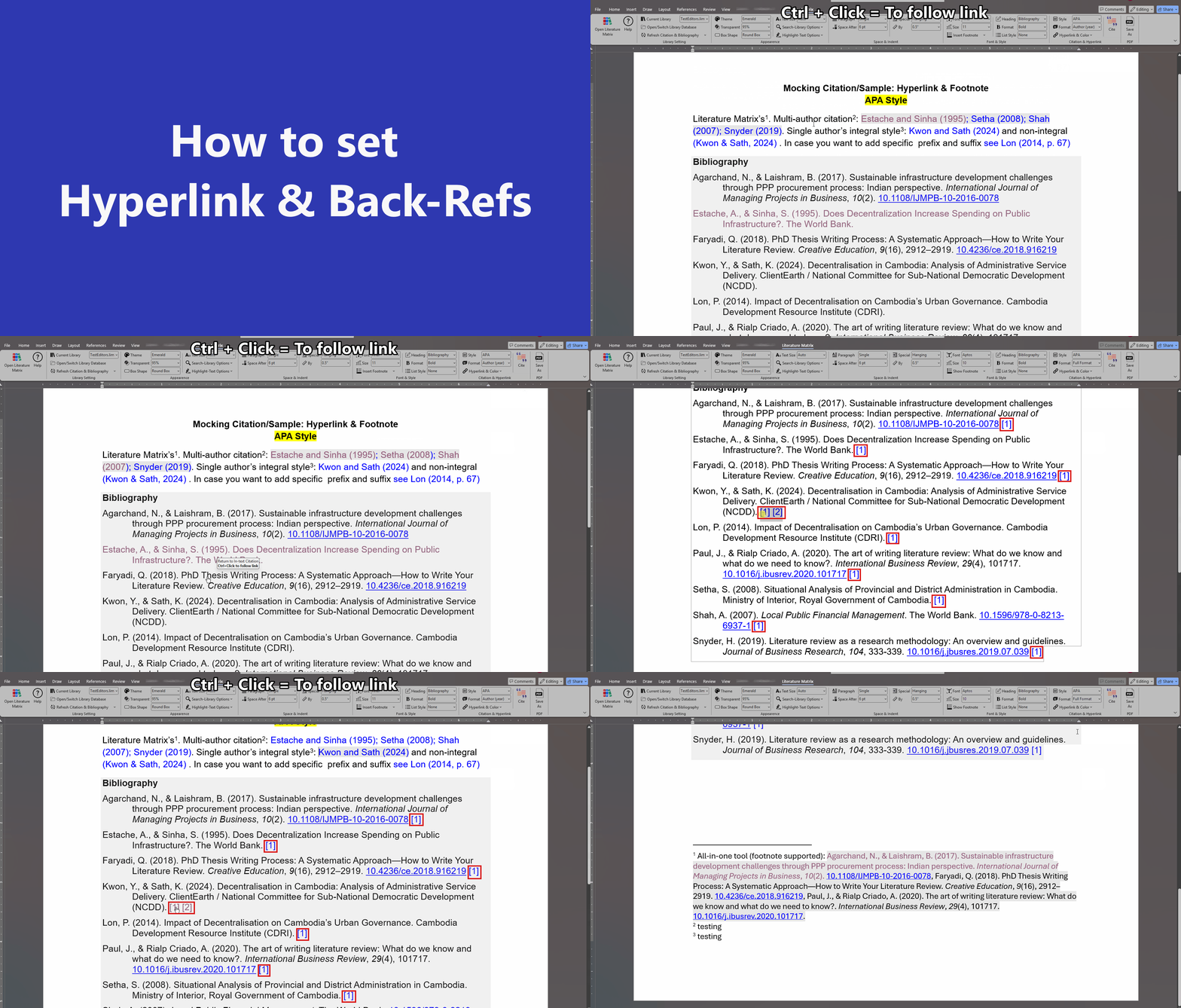
Hyperlinks & Back-References

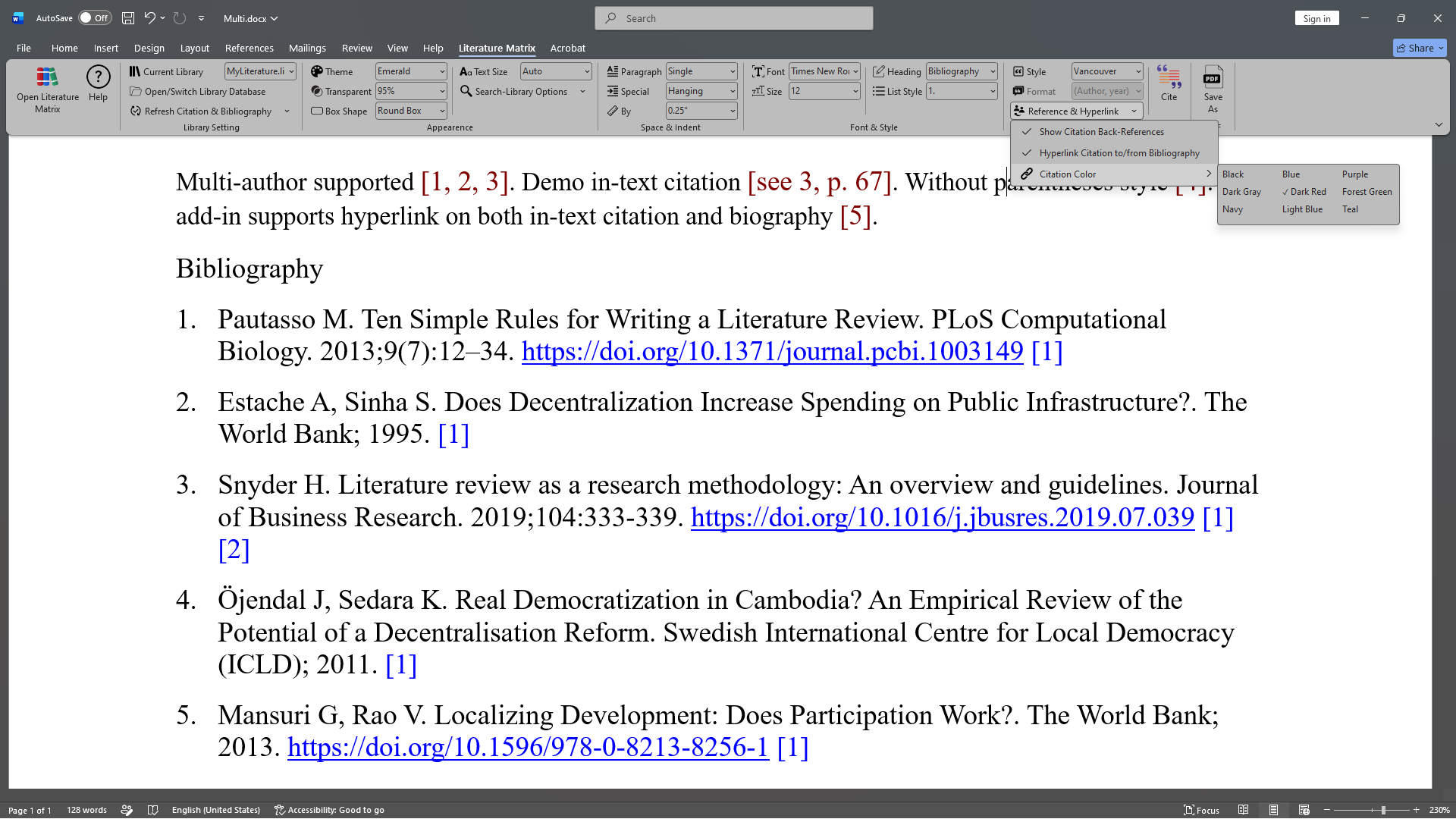
Check "Show Back-References" in the ribbon to append clickable jump-links (e.g. [1] [2]) to the end of your bibliography entries, allowing you to teleport back to the text. Use "Hyperlink URLs" to convert DOIs into active links.

Hyperlinks Preview
Word's Add-In

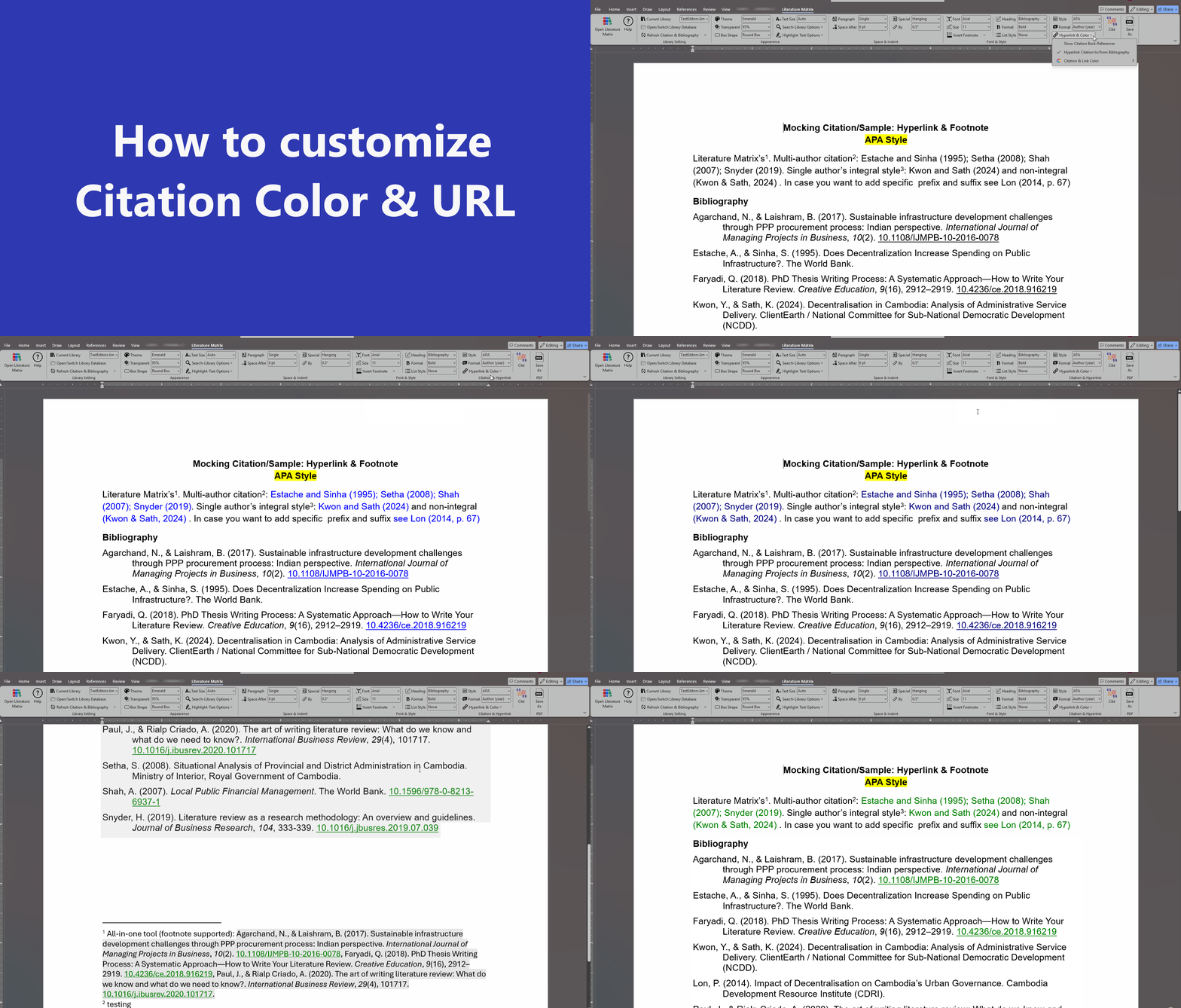
Citation Colors & URL/DOI

Change the font color of active in-text citations (Black, Blue, Purple, Teal, etc.) and URL/DOI link from the ribbon to easily review dynamic fields before publishing.

Citation Colors Preview
Word's Add-In

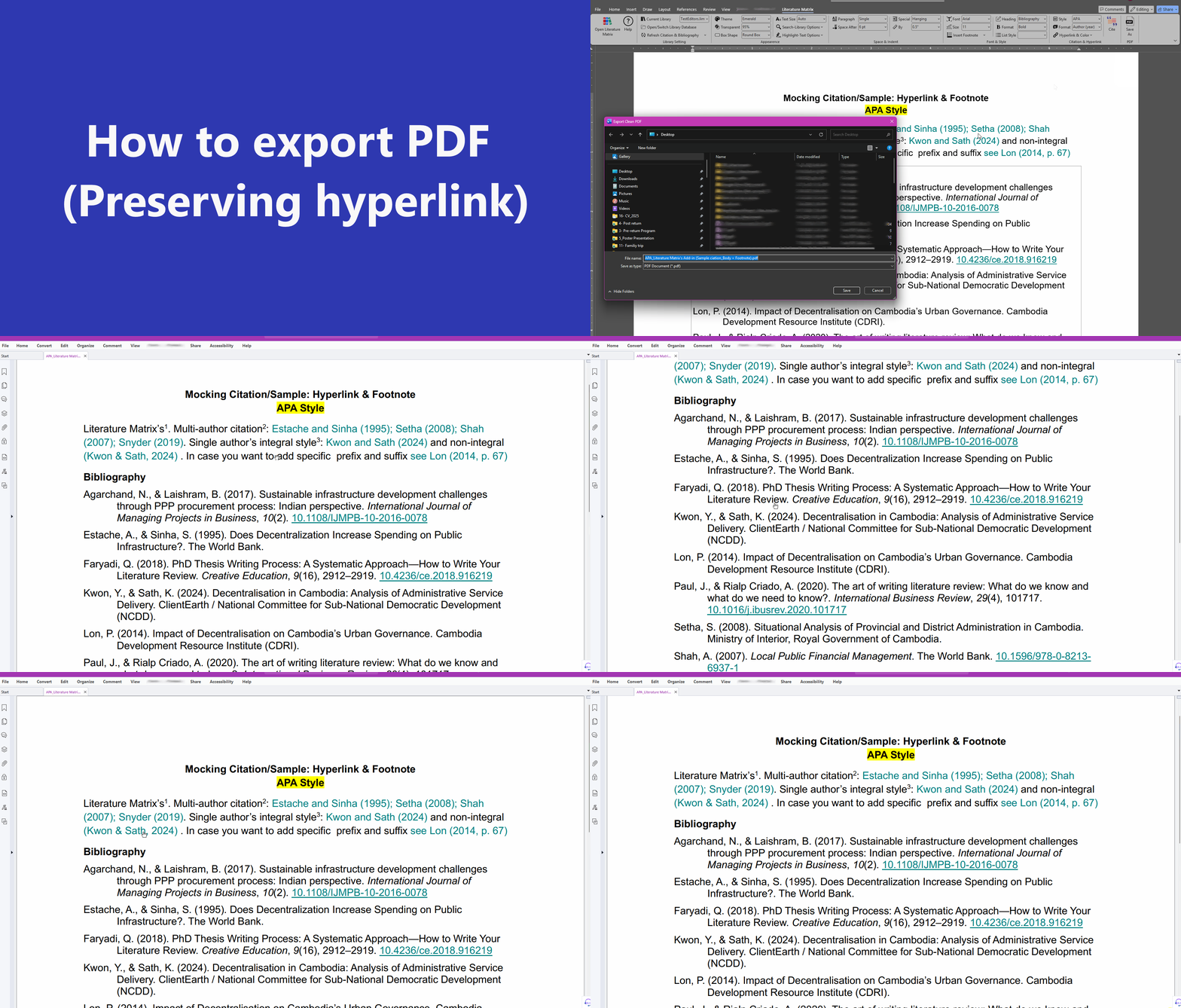
How to Export a Clean PDF

Click "Export Clean PDF" to output your current Word document. This action automatically strips out the gray field boxes and converts all your dynamic citations into clickable jump-links within the PDF.

Export PDF Preview

Contact Support

✉️

If you have already paid but haven't received your license key, or if you have any other questions regarding your subscription, please contact us directly using the methods below.

📧 [email protected] ✈️ t.me/Kimaun

Select Payment Method

ABA

Pay via ABA PayWay

You will be redirected to the secure ABA portal. Please manually enter to claim your discount.

Pay via ABA PayWay

You will be redirected to the secure ABA PayWay portal to complete your payment of using KHQR.

PayPal

Pay Securely with PayPal

You will be redirected to PayPal to complete your purchase of .

VISA
MC
AMEX

Secure Checkout

You will be redirected to our secure payment partner (Stripe) to process your payment.

🔒 256-bit SSL Encrypted Checkout
₿

Pay with Cryptocurrency

Checkout securely using Bitcoin, Ethereum, or USDT. Your license will be emailed automatically after 1 network confirmation.

Literature Matrix

© 2026 Literature Matrix. All rights reserved.